Settings is the last tab. It has a card for your accounts, then three groups of rows. Each row shows what it is set to.
Short answer
Tap Settings in the tab bar. Tap a row to open it. The value at the right of the row shows what it is set to now.
SkipTube is for iPhone.
Open Settings
Tap Settings in the tab bar, at the bottom of the screen. On Home, the round button at the top right also opens it.
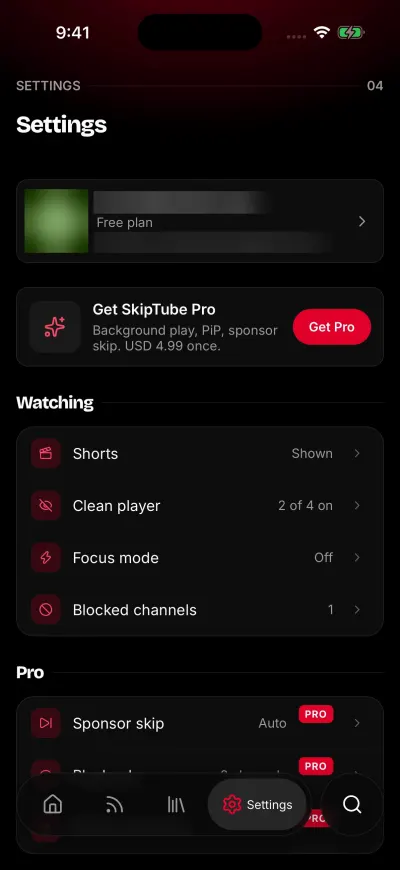
Settings, on the free plan.
From the top, the tab shows these parts.
- A card with your SkipTube name, your plan and your YouTube account. Tap the card to open your accounts. See Your two accounts.
- On the free plan, a banner says Get SkipTube Pro. Tap it, or tap Get Pro, to open the Pro screen. The banner shows the price when the store has given it. See Free and Pro.
- Three groups of rows: Watching, Pro and App.
- At the bottom, the version of the app.
The rows in each group
Tap a row to open it. Most rows slide up a panel. Close it with Back at the top, or pull it down.
Watching. These are free.
- Shorts: hide Shorts, or show them. See Watch or hide Shorts.
- Clean player: four switches for what the player shows. See Clean player and Focus mode.
- Focus mode: Search and your channels only.
- Blocked channels: the channels you blocked. See Block a channel.
Pro. These are part of Pro.
- Sponsor skip: how SkipTube skips sponsors, and what it skips. See How sponsor skip works.
- Playback: Audio only by default, Speed per channel and Sleep timer.
- Safari extension: the steps to turn it on. See Turn on the Safari extension.
App.
- Accounts: the same panel as the card at the top.
- App language: the language of SkipTube. See Change the app language.
- Legal & privacy: the legal documents. See Legal documents.
- Help and support: this help site.
- Rate SkipTube, or Update when a new version is out.
What the value on the right says
Each row tells you what it is set to, so you often do not need to open it.
- Shorts shows Hidden, Normal video or Shown.
- Clean player shows how many of its four switches are on.
- Focus mode shows On or Off.
- Blocked channels shows the number of channels you blocked.
- Sponsor skip shows Auto, Button or Off.
- Playback shows 1× default, or the number of channels that have their own speed.
- Accounts shows how many accounts are signed in on this phone.
- App language shows the language, or System default with the language it follows.
Pro rows on the free plan
On the free plan, the Pro rows wear a PRO tag. Tap one and the Pro screen opens. Nothing changes until you have Pro.
The rows are still there, so you can see what Pro adds. See Get Pro.
Help and support
Tap Help and support to open this support site. It opens in your browser, in the language of the app. See Where is help in the app?
Rate SkipTube, or update
The last row is Rate SkipTube. When a newer version of SkipTube is out, the same row says Update. Tap it to open the App Store. SkipTube checks for a new version at most every 6 hours. There is no pop-up.
If the App Store does not open, a message says Unable to open the store. Please try again. See The App Store did not open.
Where your settings are kept
With a SkipTube account, your settings follow you to every phone you sign in to. They include Shorts, the clean player, Focus mode, blocked channels, sponsor skip, audio only and the sleep timer.
Settings you change while signed out stay on this phone. At sign-in, they go to your account only if the account has no saved settings. An account that already has settings keeps them. The app language stays on this phone only.