Shorts are the short upright videos. You choose if SkipTube shows them, hides them, or plays them like any other video.
Short answer
Open Settings, tap Shorts, then pick Hide, Normal video or Show.
SkipTube is for iPhone.
Choose how Shorts show up
- Tap Settings in the tab bar.
- Under Watching, tap Shorts.
- Pick one of the three choices.
- Hide: Shorts are removed from Home, search and channels.
- Normal video: Shorts open as normal videos in the player.
- Show: Shorts are shown as they are.
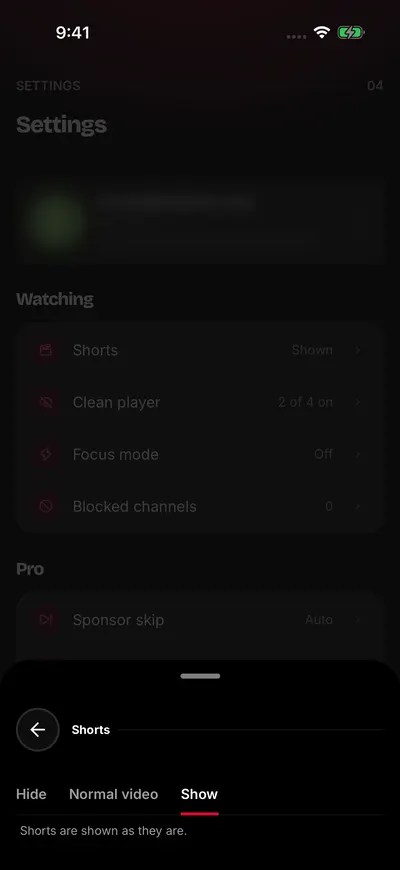
Choose how Shorts show up.
At first, Shorts are shown. This setting is free. With a SkipTube account, it is kept on every phone you sign in to.
Home has a Shorts row only when the choice is Show. A channel's Shorts tab is left out when Shorts are hidden.
The Shorts player
A Short opens in its own player. It fills the screen and stays upright. It starts with the Short you tapped. The ones after it come from YouTube.
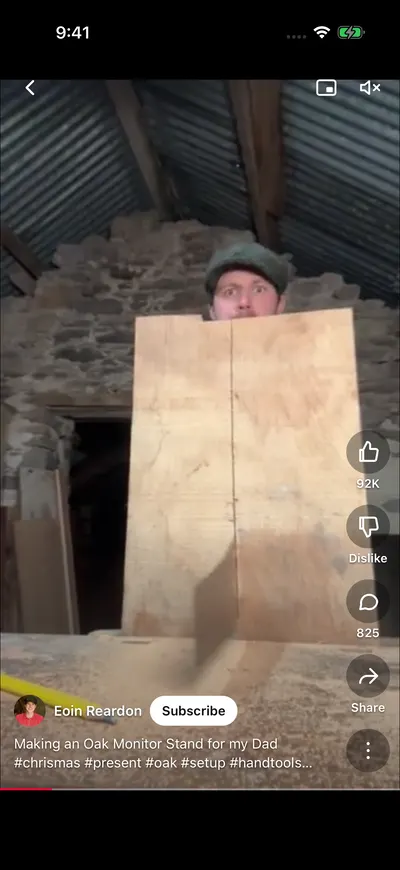
Slide up for the next Short.
- To see the next Short, slide your finger up the screen. Slide down to go back to the one before. A short slide is not enough. Move your finger a good way.
- Tap the screen to pause. Tap it again to play.
- A Short plays again from the start when it ends. It never moves on by itself.
- At the top left, the back button closes the player.
- At the top right, Picture in picture is a Pro button.
- Next to it is a button for sound.
- Along the right edge: Like, Dislike, Comments, Share and More.
- At the bottom: the channel name, Subscribe and the title.
Closing the player takes you back to where you were. If you opened the Short from a search or a channel, that screen opens again, with the same results.
What a Short does not have
A Short has no queue, no history, no sponsor skip, no sleep timer, no speed and no small player. It is not saved to your History, and SkipTube does not keep where you stopped. Leaving the Short stops it. If a video was playing before, SkipTube gives it back, paused.
Shorts from channels you blocked are skipped. Videos you marked Not interested are skipped too.
If there are no Shorts
A screen that says No Shorts to show has no Short left to show. Tap Close. A screen that says Could not load the Shorts could not reach YouTube. Tap Try again. See Shorts say they could not load.