Search opens as a panel over the screen you are on. It works with no account.
Short answer
Tap the round Search button next to the tab bar. Type, then tap the search key on the keyboard.
SkipTube is for iPhone.
Open search and type
- Tap the round Search button next to the tab bar. On Home, you can also tap Search when it shows.
- A panel opens with the keyboard already up. The box says Search videos and channels.
- Type what you want.
- Tap the search key on the keyboard.
You do not need an account to search. While you type, suggestions show under the box. Tap one to search for it at once.
To empty the box, tap the small x (Clear the search) at its right end. It shows only when there is text in the box. To close search, pull the panel down.
Read the results
The results come in one list. Under the box, four buttons narrow it:
- All
- Videos
- Channels
- Playlists
Tap one to change the list. Each new search starts on All.
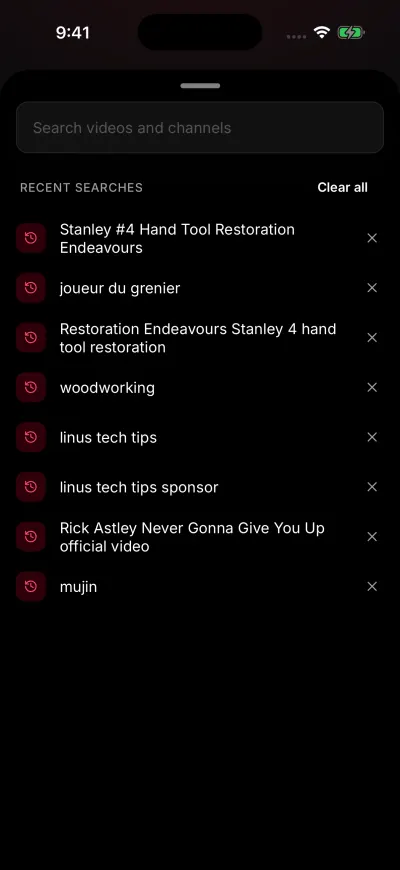
Recent searches stay on this phone.
On a result:
- Tap a video to watch it. Search closes and the Watch screen opens.
- Tap a channel to open its page.
- Tap a playlist to see its videos in a panel over search.
- Tap the more button at the right of a video, or press and hold it, to open its menu.
Videos from channels you blocked do not show. If you set Shorts to hide, Shorts do not show either. When nothing is left, the list says there are no results for what you typed.
If a search fails, the screen says Could not search with a Try again button. If only the next page fails, a line says Could not load more with its own Try again button. See Could not search.
Recent searches
When the box is empty, SkipTube lists your recent searches under Recent searches. They stay on this phone and are never sent anywhere.
- Tap a recent search to run it again. The line itself is the button. It has no arrow.
- Tap the small x at the right of one to remove it.
- Tap Clear all to delete them all.
SkipTube keeps the last 20. A search you repeat moves to the top, with no copy of it.
If there are none, you see No recent searches. The text under it says: What you search for stays on this phone and shows up here.
A Short in the results
A Short opens in the Shorts player, not on the Watch screen. When you close it, search opens again on the same results.