Every video card has a menu. It saves, queues, shares, hides a video, or blocks its channel.
Short answer
Tap the more button at the right of a video, or press and hold the video. A panel with the video's menu opens.
SkipTube is for iPhone.
Open the menu
- Find a video on Home, in search, on a channel page or in a list.
- Tap the more button at the right of the video. You can also press and hold the video.
- A panel opens with the video at the top and its rows under it.
The menu is for the video you opened it on. On the Watch screen, tap the video, then the more button at the top right of the video.
To close the menu without doing anything, pull it down.
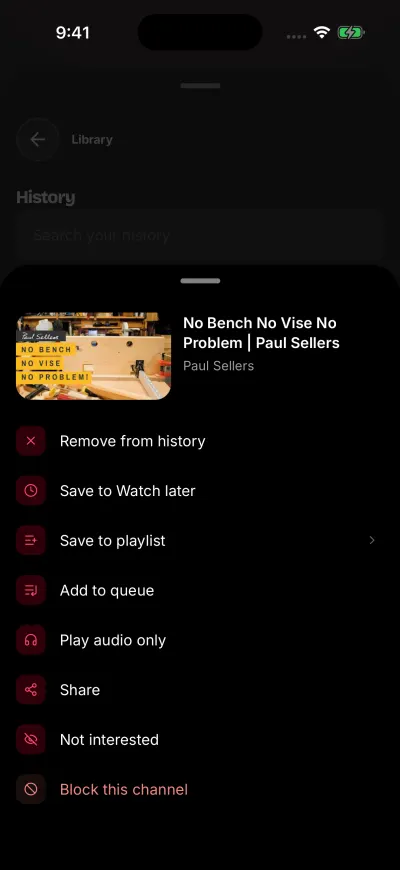
Each video has its own menu. In History it starts with Remove.
The rows
- Remove from history or Remove from Watch later. They come first, and only when you open the menu from a row in History or Watch later. They take the video out of that list.
- Save to Watch later. Signed in to YouTube, it goes to your YouTube Watch later list. Signed out of YouTube, it goes to your saved videos in SkipTube, and asks you to sign in to SkipTube first.
- Save to playlist. Signed in to YouTube, a panel opens over the menu so you can pick a list. Signed out, it opens the YouTube sign-in.
- Add to queue. Adds the video to your queue. This is a Pro feature.
- Play audio only. Plays the video as sound only. This is a Pro feature.
- Share. Opens the iPhone share panel with a normal YouTube link to the video.
- Not interested. Hides the video.
- Block this channel. Hides every video from this channel. It is in red.
On the free plan, the Pro rows carry a PRO mark. Tap one and SkipTube explains Pro. Nothing is bought until you tap the buy button.
A Short has a shorter menu. It has no queue row and no audio only row.
What happens after you tap a row
Most rows close the menu when they are done. Save to playlist opens its own panel over the menu. Play audio only closes the menu and opens the Watch screen.
While a row is working, it shows a busy mark and the other rows wait. A second tap on the same row does nothing. This keeps one tap from doing the same job twice.
Hide a video or block a channel
Not interested is explained in Not interested, and what it does.
Blocking a channel hides all its videos. Block this channel adds the channel to your blocked channels. Its videos leave Home, search and the other lists. To undo it, open Settings, then Blocked channels, then tap Unblock next to the channel. A channel you block while signed in to SkipTube is kept on your account.