Sponsor skip jumps over the parts of a video where the creator talks about a sponsor. It is part of SkipTube Pro.
Short answer
Tap Settings, then Sponsor skip under Pro. Pick Auto, Button or Off.
SkipTube is for iPhone.
What it does
Many videos have a part where the creator reads out a sponsor. Some also ask you to like and subscribe. Sponsor skip jumps over those parts for you.
It works on a normal video. It does not work in the Shorts player, because Shorts have no sponsor skip.
Where the marked parts come from
SkipTube keeps a list of marked parts for each video. The list is built from what other viewers' phones found.
- The video's chapters and captions.
- The places where viewers jumped forward by hand.
- Parts that people with Pro marked themselves. See Mark a sponsor SkipTube missed.
If there is too little proof for a part, SkipTube does not show it. If SkipTube is less sure about a part, it does not skip it by itself. It shows a button instead.
Marks work when you are signed out too.
The marks on the bar
Every video shows its marked parts on the bar at the bottom of the player, in colour. This is free. You see where the sponsor is, even without Pro.
Choose how it skips
Sponsor skip is part of Pro. You choose how it works in Settings.
- Tap Settings at the bottom of the screen.
- Under Pro, tap Sponsor skip.
- Pick one of the three choices.
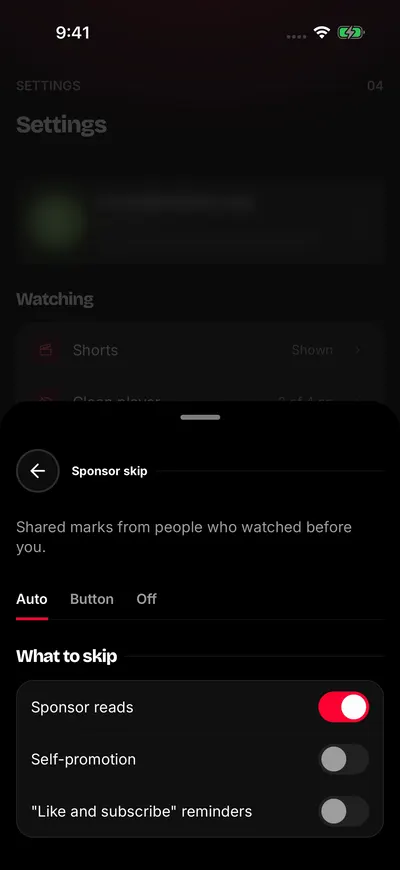
Choose how sponsors are skipped.
- Auto: SkipTube jumps over the part by itself.
- Button: a button shows while the part plays. You tap it to jump.
- Off: nothing is skipped.
At first, the choice is Auto. Your choice is kept on your SkipTube account.
What to skip
Under What to skip, there is one switch for each kind of part.
- Sponsor reads
- Self-promotion
- "Like and subscribe" reminders
At first, only Sponsor reads is on. A kind that is off is never skipped, and no button shows for it.
In Auto mode
Three seconds before a part that SkipTube is sure about, a card shows at the foot of the Watch screen, directly above Up next. It says Skipping sponsor in … and counts down.
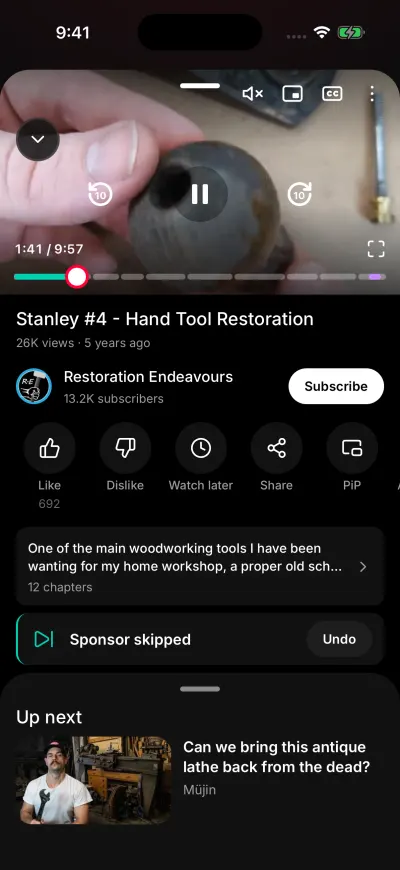
After the skip, the card offers Undo for 4 seconds.
- To skip, do nothing. The video jumps to the end of the part.
- To watch the part, tap Watch it. That part is not skipped.
After the jump, the card says Sponsor skipped. It stays for 4 seconds. Tap Undo to go back to the start of the part. That part is not skipped again while you keep watching this video.
If the skip was a mistake, press and hold the card while it shows. See This skip was wrong.
The card has other words for the other kinds. They are Skipping self-promotion in … and Skipping reminder in …, and Self-promotion skipped and Reminder skipped. When you hold the phone sideways, the card is drawn inside the video.
In Button mode
While a marked part plays, a button shows at the foot of the Watch screen, directly above Up next. It says Skip sponsor, or Skip self-promotion or Skip reminder. Tap it to jump to the end of the part. The card then says Sponsor skipped, with Undo.
Button mode also shows the button for parts that SkipTube is less sure about, even in Auto mode.
A part in its last second is not skipped, because the jump would go almost nowhere.
On the free plan
Free viewers see the marks on the bar. Nothing is skipped.
The first marked part of a video can open a Pro panel. The video pauses. The panel says A … sponsor read starts now with the length of the part. You have two choices.
- Get Pro. The part is skipped and the video plays on. See Get SkipTube Pro.
- Tap Watch the sponsor. The video plays on, and the part plays too.
This panel does not open every time. See Free and Pro. When it does not open, a card shows Sponsor playing with a button, Skip with Pro. Tap it to see the Pro panel.
What your phone shares
When you are signed in, your phone sends what it found in a video. This means its chapters and captions, and up to 3 forward jumps by hand per video each day. This is stored without your name. When you are signed out, your phone sends nothing.