The video is at the top. Under it come the title, the channel, a row of buttons, a card for Details, and Up next at the bottom.
Short answer
Tap the video to show its buttons. Tap the title, or the card under the buttons, to open Details. Tap Up next at the bottom for more videos.
SkipTube is for iPhone.
What is on the screen
From the top to the bottom:
- The video, at the very top. A handle sits on its top centre, and the round Minimise the player button sits on its top left. Its other buttons show when you tap it. See Player controls.
- The title, with the views and how long ago it went up.
- The channel: its picture, its name and its subscribers, with a Subscribe button. After you subscribe, the button says Subscribed.
- A row of buttons that slides sideways.
- A card for Details.
- Up next, at the bottom, with the first video that follows. When SkipTube has a sponsor card or a skip button for you, it sits directly above this, at the foot of the page. It does not cover the title.
The video stays at the top while the page under it scrolls.
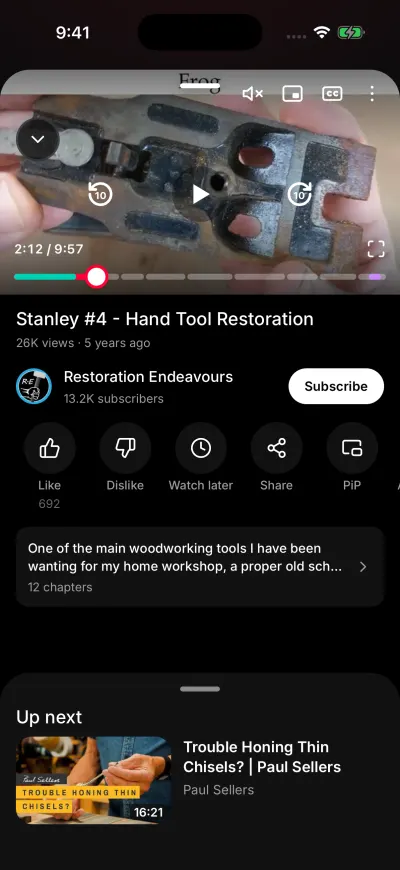
The Watch screen. Tap the down arrow to close it.
Open and close the Watch screen
Tap a video, or tap the mini player, or drag the mini player up. The Watch screen opens. It covers most of the screen. The screen you were on shows above it, dimmed.
To close it, do one of these:
- Tap the round Minimise the player button with a down arrow at the top left of the video.
- Drag down on the video.
- Drag down on the page, when it is at the top.
- Tap the dimmed area at the top.
You land back on the screen you were on, in the same place. The video keeps playing in the mini player. The video's own buttons have no close button.
The row of buttons
Slide the row to the left to see all of it. From the left:
- Like and Dislike.
- Save, or Watch later when you are signed in to YouTube. Press and hold it then to pick a playlist.
- Share.
- PiP keeps the video playing in a small floating window over other apps.
- Audio only plays sound only, with no picture.
- The speed button shows the speed, such as 1x. Tap it to change how fast the video plays.
- Sleep stops the video after a time you pick.
- Queue opens your list of videos to play next. It adds nothing to it.
- Sponsor lets you tell SkipTube where a sponsor part starts and ends. A live video does not have it.
On the free plan, the Pro buttons carry a PRO mark. A Pro button explains Pro to a free account. Nothing is bought until you tap the buy button.
Like and dislike
Tap Like or Dislike. Tap the same button again to take your vote back.
- Signed in to YouTube, your vote goes on your YouTube account and in SkipTube.
- Signed in to SkipTube only, it goes in SkipTube.
- Signed out of both, SkipTube asks you to sign in first, then casts the vote.
The first time you like a video while signed out of YouTube, a panel asks Like on your account too? It says: Sign in to YouTube and your likes go on your real account, on every device. It shows once on a phone.
The number next to the like button is YouTube's like count. The number next to the dislike button starts with a ~, because it is a guess. See The dislike number is an estimate.
Details
Tap the title, or the card under the row of buttons, to open Details. The card shows the start of the description, and how many chapters the video has.
Details has tabs:
- Description. Three tiles show the views, the likes and the upload date. The text of the video comes under them. A link in it works: a time link jumps in the video, a video link opens that video, a channel link opens the channel, and a web link opens in your browser.
- Chapters. Each chapter has its time. Tap one to jump there. The panel closes. A chapter with a coloured dot holds a part SkipTube marked as a sponsor or a reminder.
- Comments. Comments come in pages. If a page fails, a line says Could not load more with a Try again button. Under a comment with replies, tap the replies button to read them, and Hide replies to fold them.
The Comments tab is missing when Hide comments is on under Clean player in Settings. The video stays at the top of Details, so you can keep watching. Pull it down to close it.
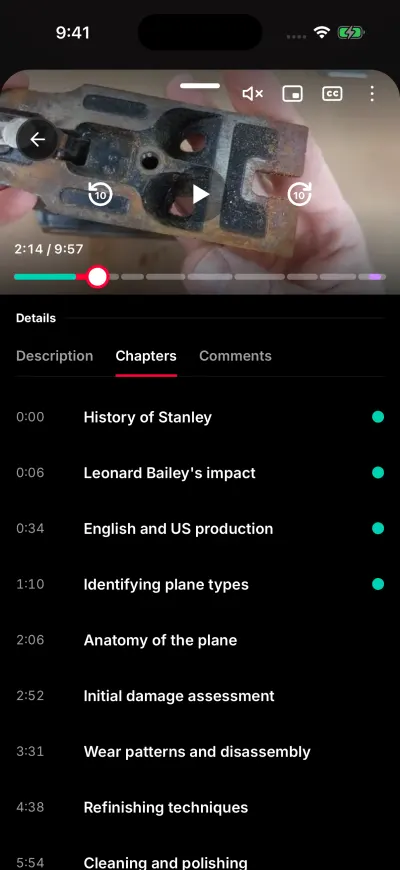
Description, chapters and comments are in Details.
If a tab does not load, see Details or comments did not load.
Up next
Up next sits at the bottom of the Watch screen. At rest you see only its name and the first video that follows.
- Drag it up, or tap it. The list opens right under the video. The video stays where it is.
- First comes Next in your queue, if you have Pro and videos waiting in your queue.
- Then comes Suggested, a long list YouTube picks. It loads more as you scroll.
- Tap a video. The list closes and that video plays.
- To go back to the small view, drag the list down, or tap Back at the top of the list.
If the list is empty or fails, or a line says Could not load more, see No suggested videos.
Keep watching while you look around
Tap the round Minimise the player button at the top left of the video. The Watch screen closes and the video shrinks into a small player above the tabs. It keeps playing.
The small player is explained in The tabs, the search button and the mini player.