Four tabs and a round search button sit at the bottom. A small player floats above them while a video is loaded.
Short answer
The four tabs are Home, Subscriptions, Library and Settings. The round button next to them is Search.
SkipTube is for iPhone.
The four tabs
At the bottom of the screen, a floating bar has four tabs. The tab you are on is red. The others are grey. Tap a tab to open it.
- Home: rows of videos. Continue watching, New from your channels, Shorts and For you.
- Subscriptions: your channels and their new videos.
- Library: the videos you saved and watched.
- Settings: how SkipTube looks and behaves, and your accounts.
The tab bar stays at the bottom while you scroll.
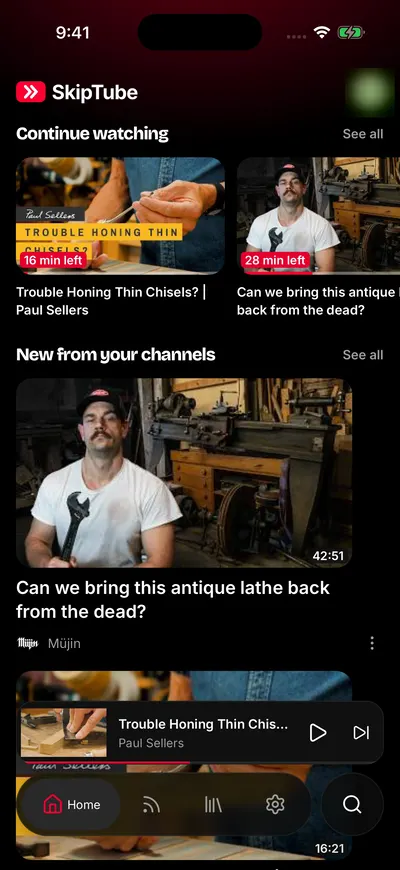
Home, signed in to YouTube.
The search button
The round button next to the tab bar is Search. Tap it. Search opens as a panel over the screen you are on. Pull the panel down to close it and return.
The profile button on Home
At the top right of Home there is a round button with your picture, or a person shape. Its name is Accounts and settings. Tap it to open the Settings tab.
The mini player
When you open a video and then close the Watch screen, the video does not stop. A small card floats above the tab bar. The mini player is the closed Watch screen. It shows while a video is loaded.
The card shows the video, its title, the channel and a thin line for how far it has played. On it:
- Tap the card, or drag it up, to open the Watch screen.
- Tap the play or pause button to pause or play.
- Tap the next button to go to the next video. It only shows when a video follows.
- Slide the card down to close it. This stops the video.
A Short never shows in the mini player.
Put a video in the mini player
- On the Watch screen, find the round button with a down arrow at the top left of the video. It is called Minimise the player.
- Tap it.
- The Watch screen closes and the video shrinks into the mini player. The video keeps playing.
- You are back on the screen you were on before.
The video goes on while you use the tabs.
There are other ways to close the Watch screen. Drag down on the video. Or drag down on the page, when it is at the top. Or tap the dimmed area above the Watch screen. The video's own buttons have no close button any more.