Three welcome pages, then an optional page to sign in to YouTube. You do not need an account to start watching.
Short answer
Tap the right side of the screen to see the next welcome page. On the last page, tap Get started.
SkipTube is for iPhone.
The order of the pages
The pages come in this order: the welcome pages, then the name page, then the YouTube page. You do not always see all of them.
- Not signed in, on a new phone: the welcome pages, then the YouTube page. There is no name page, because there is no account.
- A new SkipTube account on a phone that never showed the welcome: the welcome pages, the name page, then the YouTube page.
- A new SkipTube account on a phone that already showed the welcome: the name page only.
The three welcome pages
The first time you open SkipTube, three full screen pages show what it does. Each one has a picture, a short title and one line.
- No ads. Videos play with nothing in the way.
- Keeps playing. Lock your phone or switch apps. The sound goes on.
- Skips sponsors. Jumps over the paid parts for you.
The second and third pages carry a PRO mark. That means the feature is part of SkipTube Pro. The first page is free.
Move between the pages
- Tap the right half of the screen to see the next page.
- Tap the left half to go back.
- On the last page, tap Get started at the bottom of the screen.
The bars at the top of the screen show which page you are on. You do not slide on these pages. You tap. On the last page, the right half of the screen does nothing. Use the button.
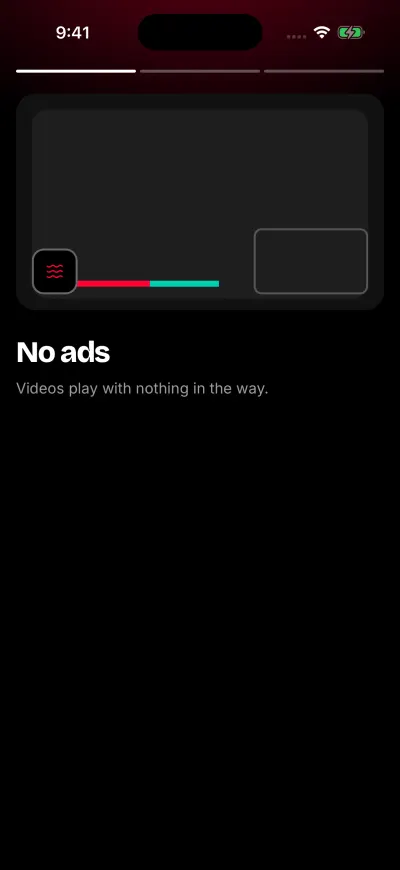
The first of the three welcome pages.
The name page
You only see this page when you make a new SkipTube account. It asks What should we call you?
- Tap the box and type a first name or a nickname.
- Tap Continue. You can also slide the page to the left.
- You can leave the box empty. Nothing is saved, and you go on.
Your name is at most 50 letters. You can change it later. See Your two accounts.
If you came through the welcome pages, a text button Back sits under Continue. Tap it to see the welcome pages again. A phone that already saw the welcome has no Back button here.
The YouTube page
Next comes a page called Bring your subscriptions. It says what signing in to YouTube adds:
- Your subscriptions and their new videos
- Watch later, playlists and history
- Likes and subscribes on your account
To sign in, tap Sign in to YouTube. To go on without it, tap Not now. Signing in to YouTube is optional. The page says You can sign in later in Settings.
If you are already signed in to YouTube in SkipTube, this page does not show. A phone that already saw the welcome does not show it to a new account either. See Sign in to YouTube.
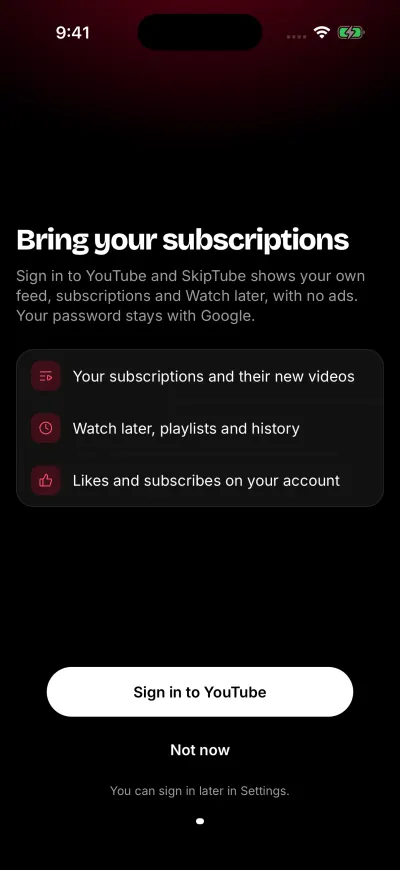
Signing in to YouTube is optional.
The Pro screen
A new account on the free plan then sees the SkipTube Pro screen. Tap Continue for free to go on without buying. Nothing is charged unless you tap the buy button.
After that, SkipTube shows the guided tour.
If a save does not work
A box that says Error with We could not save your name. Please try again. means your name did not reach SkipTube. You stay on the name page. Check your Wi-Fi or mobile data and tap Continue again.
A page that says Could not save your progress. Please try again. has a button, Try again. Tap it.