The tour lights up one thing at a time, over pretend screens. Nothing in it is saved and nothing loads.
Short answer
Read the card at the bottom, then tap its go-on button. To leave the tour, tap its skip button.
SkipTube is for iPhone.
How the tour works
After the welcome, SkipTube shows the tour once. It uses pretend copies of Home and of the Watch screen, with made up videos. A light shines on one control. The rest of the screen is dimmed.
At the bottom, a card explains the lit control. It says which step you are on, for example "Step 1 of 5". It has two buttons: one to go on, and one to skip the tour.
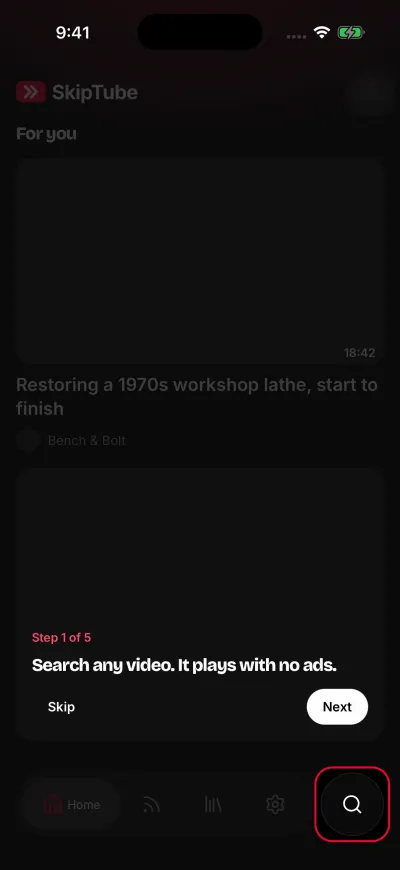
The tour lights up one thing at a time.
Only the two buttons on the card work. The controls on the pretend screens are drawn, but they do nothing. Nothing loads, and nothing you do is saved.
Step 1: search
The light is on the round search button next to the tab bar. The card says you can search any video, and that it plays with no ads.
Step 2: a video card
The light is on the first video card on Home. Videos show on Home as cards. Tap a card in the real app to open the video.
Step 3: Picture in Picture
The tour switches to the Watch screen. The light is on the Picture in Picture button at the top right of the video. Picture in Picture is part of SkipTube Pro. It plays the video in a small window over other apps.
Step 4: the sponsor mark
The light is on the bar at the bottom of the video. A coloured part of the bar marks a sponsor read. The marks show for everyone. Skipping them is part of SkipTube Pro.
Step 5: Settings
The tour goes back to Home. The light is on the Settings tab. The card says you can hide Shorts and clean up the player there. On this last step, the go-on button ends the tour.
Skip the tour
Tap the skip button on the card, at any step. The tour ends and SkipTube opens.
Watch it again
The tour shows once. There is no button to see it again later.
If you are signed in to a SkipTube account, the account remembers that you saw it. A new phone with the same account does not show it again.