Tap the video to show its buttons. They hide by themselves while it plays.
Short answer
Tap the video. Use the buttons at the top, the middle and the bottom. Tap the left or right side twice to skip 10 seconds.
SkipTube is for iPhone.
Show the buttons
Tap the video. Its buttons appear over it. They hide again 3 seconds after your last touch while the video plays, and stay on while it is paused. Tap the video again to hide them at once.
At the top, from the left:
- Mute or Unmute.
- Picture in picture. This is a Pro feature.
- Captions, when the video has captions.
- More, which opens the video menu.
In the middle: Back 10 seconds, Play or Pause, and Forward 10 seconds. When a video ends and nothing follows, the middle shows Replay.
At the bottom: the time, the full screen button, and the progress bar.
If your iPhone refuses picture in picture, SkipTube says Picture in picture is not available here
Skip 10 seconds
Tap the left third of the video twice, fast, to go back 10 seconds. Tap the right third twice to go forward 10 seconds. Tap twice within a short moment, on the same side. You can also tap Back 10 seconds or Forward 10 seconds.
Move along the bar
Put your finger on the bar at the bottom of the video and slide it left or right. The time follows your finger. If the video has chapters, the chapter name shows above the bar. The video jumps when you lift your finger. Parts of the bar in different colours are the chapters. A part SkipTube marked as a sponsor has its own colour.
Turn captions on
- Tap the video, then tap Captions at the top.
- A panel opens with Off and each language the video has. The one in use has a check mark.
- Tap one.
- The panel closes and the captions change at once.
Captions are free. If the video has none, the button does not show. Captions move up out of the way of the buttons while they are shown.
Change the speed
Speed is a Pro feature. On the free plan, it opens the Pro panel.
- Tap the speed button. Upright, it is in the row under the video and shows the speed, such as 1x. Turned sideways, it is at the top of the video.
- A panel called Playback speed opens. A big number shows the speed now.
- Put your finger on the slider and slide it left to slow down or right to speed up.
- Lift your finger.
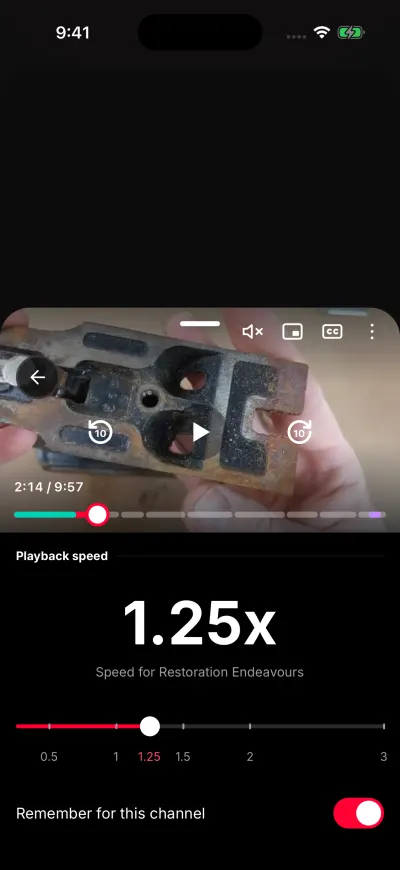
Slide to change the speed.
The slider goes from 0.25 to 3. It moves in steps of 0.05. Marks show 0.5, 1, 1.25, 1.5, 2 and 3. The big number follows your finger, but the video only changes speed when you lift it.
Under the slider, a switch says Remember for this channel. See Remember a speed for one channel.
Go full screen
Tap the full screen button at the bottom right of the video. It only shows on the Watch screen. It says Full screen. SkipTube turns the screen sideways and the video fills it.
To come back, tap the same place. The button now says Exit full screen. You can also turn the phone. The Watch screen follows how you hold it.
Sideways, only the video shows. When you tap it, the title and the channel show at the top, with the speed button. Like, save and queue show at the bottom. If you open the video menu or another panel over it, the screen stays sideways.