The Library has Continue watching at the top, then one row for each list. Which lists you get depends on the accounts you are signed in to.
Short answer
Tap Library in the tab bar. Tap History, Watch later, Playlists or Liked to open a list.
SkipTube is for iPhone.
Which lists you get
Tap Library in the tab bar. The lists you see depend on who you are signed in to.
- Signed in to YouTube: History, Watch later, Playlists and Liked. They are the lists of your YouTube account.
- Signed in to SkipTube only: History and Watch later. They are SkipTube's own lists. Watch later holds the videos you saved.
- Signed in to neither: a screen that says Your library lives here It says: Sign in to keep Watch later, history and playlists. Tap Sign in to YouTube, or tap Sign in to SkipTube.
Under each list's name, a line says how many videos it holds, when SkipTube knows. A number with a plus, such as 30+, means there are more than SkipTube has read yet.
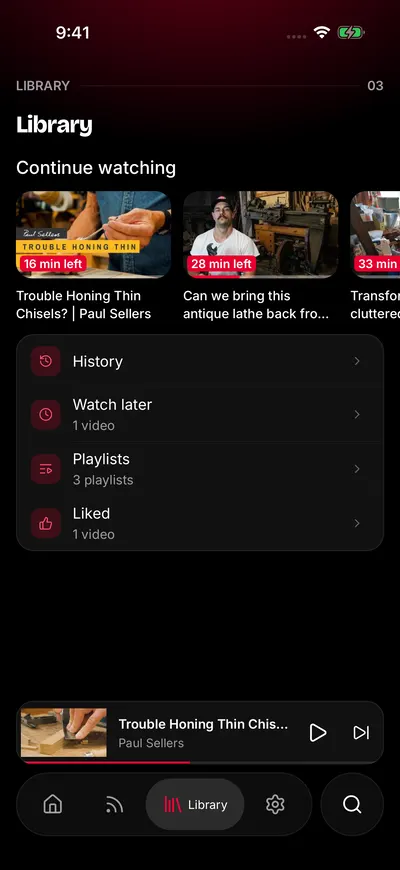
Everything you saved, in one place.
Continue watching
When you have started videos and not finished them, a row called Continue watching sits at the top. Each card shows how many minutes are left. Tap a card to carry on from where you stopped.
The row comes from your SkipTube history. It lists videos you watched for at least 30 seconds and did not finish, newest first, up to 10. If there is none, the row is left out.
Open a list
Tap a list's row. The list opens as a tall panel over the Library. To close it, pull it down. Tap a video to watch it. The panel closes and the Watch screen opens.
If a list is long, SkipTube loads more as you reach the end. If that fails, a line says Could not load more with a Try again button. Tap it and the list carries on.
Playlists lists your own playlists. Tap one to open it in its own panel.
History
History is in days. History from SkipTube is split into Today, This week and Earlier. History from YouTube uses YouTube's own day names.
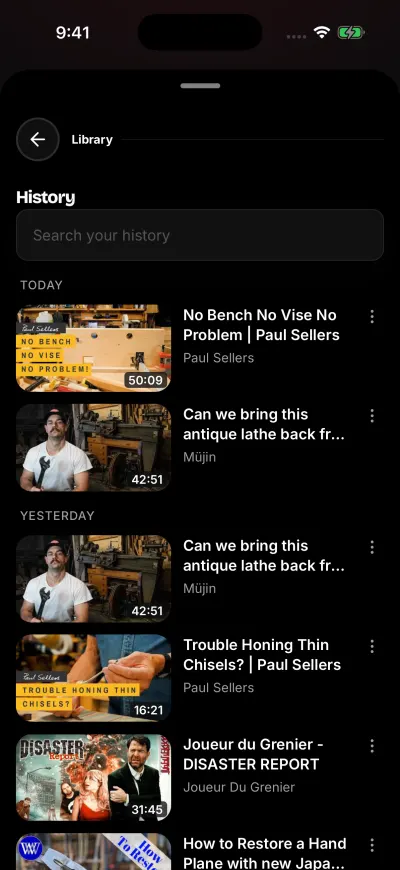
Videos you watched, newest first. Use the more button to remove one.
To find a video, type in the box at the top, Search your history. The search looks at the titles SkipTube has already loaded. Scroll to load more, then search again. If nothing matches, the list says No videos match … To empty the box, tap Clear search.
To take one video out, tap the more button (three dots) at the right of its row. Then tap Remove from history, the first item in the menu. You can also slide the row to the left and tap Remove. The row goes away. A few rows in YouTube's history have no remove item, because YouTube gives no way to remove them.
To remove them all, tap Clear history next to the search box. A box asks Clear your history? Tap Clear history to confirm. This clears SkipTube's history only. It does not touch your YouTube history. The button shows only when SkipTube's own history has videos in it.
SkipTube saves where you stopped in a video every 15 seconds. See Sign in to SkipTube for what a SkipTube account keeps.
Take a video out of Watch Later or a list
In Watch later, tap the more button (three dots) at the right of a row. Then tap Remove from Watch later, the first item in the menu. You can also slide the row to the left and tap Remove. The row goes at once. A video taken out of your YouTube Watch Later is gone from the list right away. In Liked, Playlists and playlists, there is no remove item. Change those on YouTube.
If it fails, a box says Could not remove this video. Try again. See Could not remove this video.
When a list is empty
Each empty list says what it is waiting for.
- Nothing watched yet Videos you watch show up here.
- Nothing in Watch later Tap Watch later under any video.
- No playlists yet Press and hold Save under a video to make one.
- No liked videos yet Videos you like show up here.
- This playlist is empty Videos you add show up here.
An empty list is not a fault, and nothing is lost. Playlists and Liked need a YouTube sign-in. If you are signed out, they say Sign in to YouTube to see this list.
When the Library does not load
A list that says Could not load your library has a Try again button. If SkipTube could not read your YouTube account, the Library says Could not reach your YouTube account with Check your connection and try again. It does not treat that as signed out. Tap Try again. See The Library says it could not load.