Your channels sit in a row at the top. Their new videos are listed below, newest first. You can open this tab with no account.
Short answer
Tap Subscriptions in the tab bar. Your channels are in a row at the top, and their new videos are below.
SkipTube is for iPhone.
What you see
Tap Subscriptions in the tab bar at the bottom of the screen. The screen has two parts.
- A row of round channel pictures at the top. Slide the row sideways to see them all. Tap one to open that channel.
- The new videos from those channels, in a list under the row. Tap a video to watch it.
The list is split into Today, This week and Earlier, and the newest video is first in each part. A part with no videos is left out. A video that gives no readable time goes under Earlier.
Each video has a more button at its right. Press and hold the video to open the same menu. See The video menu.
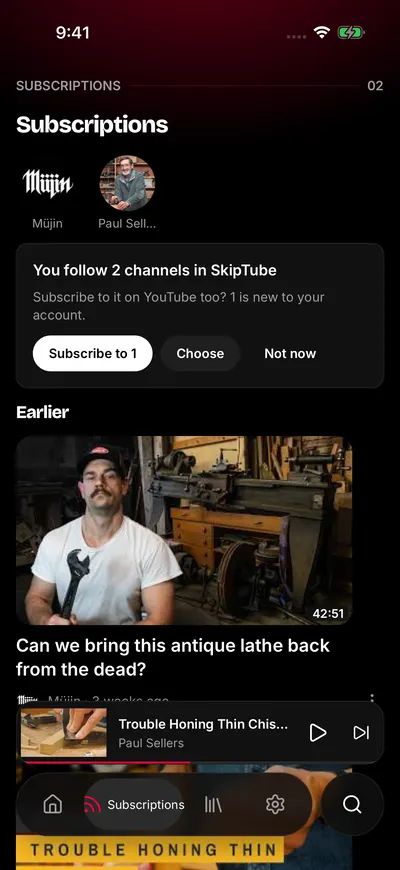
New videos from your channels.
The red dot
A small red dot on a channel picture means that channel put out a video in the last 24 hours. Channels with a dot come first in the row.
Where your channels come from
It depends on the account you use.
- Signed in to YouTube: the channels you subscribe to on YouTube, and their new videos.
- Not signed in to YouTube: the channels you follow in SkipTube. SkipTube reads the 20 you followed most recently.
Videos from channels you blocked do not show. Videos you marked Not interested do not show either. If Shorts are set to hide, Shorts do not show. See The two accounts.
If Focus mode is on, a banner at the top says so. Subscriptions still works, because Focus mode keeps your channels.
Follow or subscribe
Under a video, tap Subscribe.
- Signed in to YouTube: you subscribe on your YouTube account. The channel joins your real subscriptions, on every device.
- Not signed in to YouTube: a panel asks Subscribe on your account? Tap Sign in to YouTube or tap Follow in SkipTube only.
A SkipTube follow stays inside SkipTube. It does not touch your YouTube account. To follow, you need a SkipTube account. SkipTube asks you to sign in at that moment. See Sign in to SkipTube.
Move your SkipTube follows to YouTube
When you are signed in to YouTube and follow channels in SkipTube that your YouTube account does not have, a card shows once. It says how many you follow. It offers three buttons.
- Subscribe to …, with the number of new channels. It subscribes to all of them on YouTube.
- Choose. It opens a list. Untick the channels you do not want, then tap the subscribe button.
- Not now.
Any answer ends the offer for good. Your SkipTube follows stay as they are.
If some channels could not be subscribed, a box says Subscribed to … of …. The others could not be updated. If none could be, it says Could not update your subscription. Try again. Check your connection, then subscribe again from under a video. See The Subscriptions tab shows an error.
When the screen is empty
The words on an empty screen tell you why.
- Your subscriptions, here It says: Sign in to YouTube to see the channels you already subscribe to and their new videos. Tap Sign in to YouTube. The line under the button says Or tap Subscribe under any video to follow it in SkipTube.
- Follow a channel to see its new videos here. It says: Tap Subscribe under any video. You follow no channel yet.
- No new videos from your channels It says: Check back later. You have channels, but none put out a video that SkipTube can show.
An empty screen is not a fault. Nothing is lost.
When it does not load
A screen that says Could not load your channels' videos has a Try again button. Tap it. If SkipTube could not read your YouTube account, the screen says Could not reach your YouTube account instead. SkipTube never takes that for being signed out. Check your connection and tap Try again.