
The code comes by email from Berceuse. It works for 10 minutes, and only the newest one works.
Short answer
Look in your spam or junk folder. Check the email address shown under the title. When the countdown ends, tap Resend code. Only the newest code works.
The code does not arrive
- Wait a minute. Emails are sometimes slow.
- Look in your spam, junk or promotions folder. The email comes from Berceuse. Its subject starts with the 6 digits.
- Check the email address shown under the title. If there is a typo, tap Edit, fix it, then tap Continue again.
- Under the boxes, a countdown runs. When it ends, tap Resend code. A new code is sent.
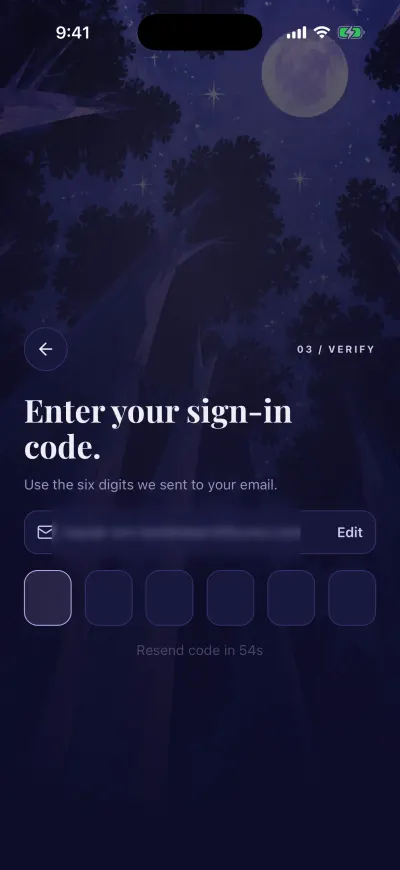
Type the six digits. The app checks them by itself.
You can ask for a new code once a minute. Only the newest code works. Delete the older emails so you don't mix them up.
The app says the code is wrong
Invalid code The digits don't match, or the code is more than 10 minutes old, or a newer code was sent since.
- Tap the boxes to show the keyboard.
- Delete the digits with the delete key.
- Type the 6 digits from the newest email.
- If that email is more than 10 minutes old, tap Resend code and use the new code.
The app asks you to wait
- Too many attempts. Please wait before trying again. After 5 wrong codes, sign-in pauses for 15 minutes. Wait, then type the code from the newest email. Nothing is lost.
- Failed to send code with a countdown under the boxes: you asked for a code less than a minute ago. The code you already received still works. When the countdown ends, you can ask again. After many codes in one hour, the wait can last up to an hour.
- Failed to send code on the email screen: we could not send the email. Check that you have Wi-Fi or mobile data, then tap Continue again.
Still nothing
On iPhone, tap Continue with Apple. Or tap Continue with Google with the same email address: it opens the same account. If that does not work either, ask us.
Did this fix it?No, ask us