
The screen that opens when something needs Premium. Here is what each part does.
Short answer
At the top, what you get. At the bottom, the two plans, the big button that starts the trial or the subscription, and Restore.
How it opens
It slides up from the bottom of the screen when you tap something that needs the subscription.
You can also open it yourself:
- Tap Settings in the bar on the left.
- Tap Subscribe, the big button under your name.
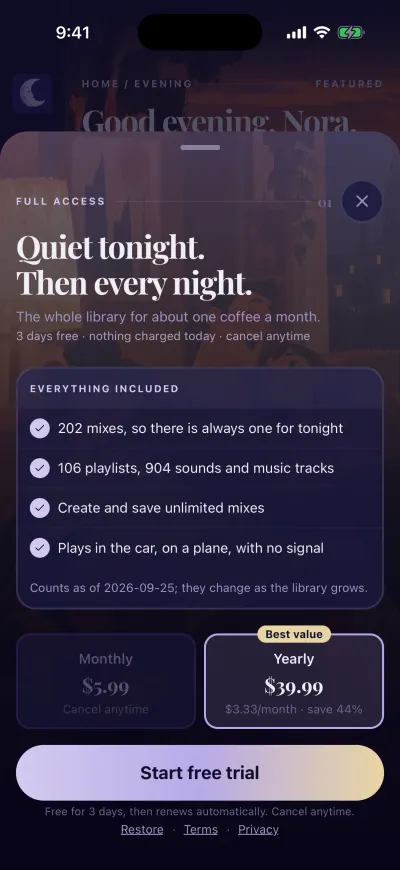
The subscription screen.
From top to bottom
- FULL ACCESS, with a round button with an X at the top right. It closes the screen.
- The title, Quiet tonight. Then every night. Under it, one line about the free trial: how many days are free, and that nothing is charged today. If the trial does not apply to you, this line says Cancel anytime.
- EVERYTHING INCLUDED: what the subscription gives you. The numbers of mixes and sounds were counted on the date written under them. They grow as the library grows.
- The two plans, side by side: Monthly on the left, Yearly on the right. The yearly plan has the Best value badge, its price per month and what you save. It is picked when the screen opens. Tap the other card to change.
- The big button. It says Start free trial when the free trial applies, or Subscribe when it does not. The line under it says when the subscription renews.
- Three small links at the very bottom: Restore, Terms and Privacy. The last two open our documents in your browser.
The prices
The prices come from Apple or Google, in your currency. In the United States: three days free, then $5.99 a month or $39.99 a year.
Restore
Restore looks for a subscription you already paid for with the Apple or Google account on this phone. Use it on a new phone, or when you paid and Berceuse still shows the plans. While it looks, it says Restoring…
Finish activation
Sometimes the payment went through, but Berceuse could not confirm it yet. Then the big button says Finish activation, and the line under it says: This verifies your existing purchase. No additional charge.
Tap it when you have Wi-Fi or mobile data. You are not charged again.
If the plans don’t show
In place of the two plans, you see Plans unavailable and Check your connection and try again.
- Check that Wi-Fi or mobile data is on.
- Tap Try again, on the right of the message.
On iPhone
Still no plans? In-app purchases may be turned off on this iPhone, in Screen Time.
On Android
Still no plans? Open the Play Store app and check that you are signed in with a Google account.
Close the screen
Tap the X at the top right. You can also put your finger on the small bar at the top of the screen and slide it down. Nothing is charged.
During the first screens
The first time you use Berceuse, the same offer comes as the last step, after you build your first mix. There, the plans are one under the other, and there is no X.