There is no password. You sign in with a code we email you, or with your Apple or Google account.
Short answer
On the first screen, tap Continue with Apple, Continue with Google or Continue with email. With email, type your address, then the six digits we send you.
Veilleuse is for iPhone.
The sign-in screen
When you open Veilleuse for the first time, you see a picture of a cot in the morning sun. At the bottom there are three buttons:
- Continue with Apple
- Continue with Google
- Continue with email
Under them it says No password. We email you a 6-digit code. The same buttons work for a new account and for an account you already have.
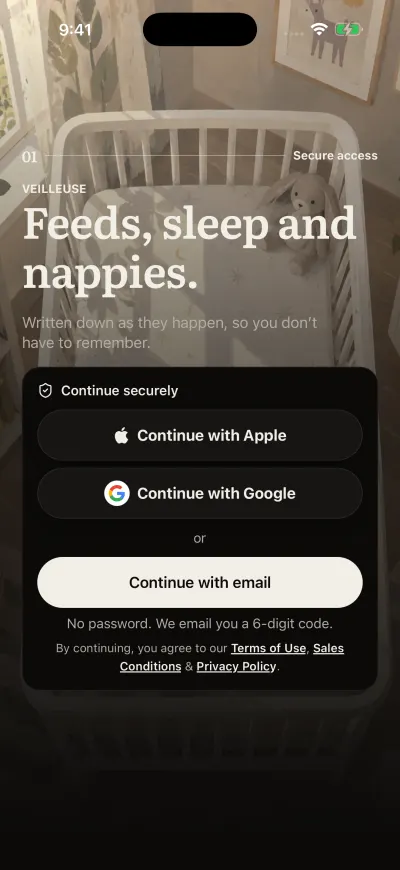
Three ways in. No password.
With your email
- Tap Continue with email.
- Type your email address in the box.
- Tap Continue. We send you an email with a six-digit code.
- Open the email. Its subject starts with the six digits.
- Go back to Veilleuse and type the six digits. You don’t need to press anything after the last one: the app checks the code by itself.
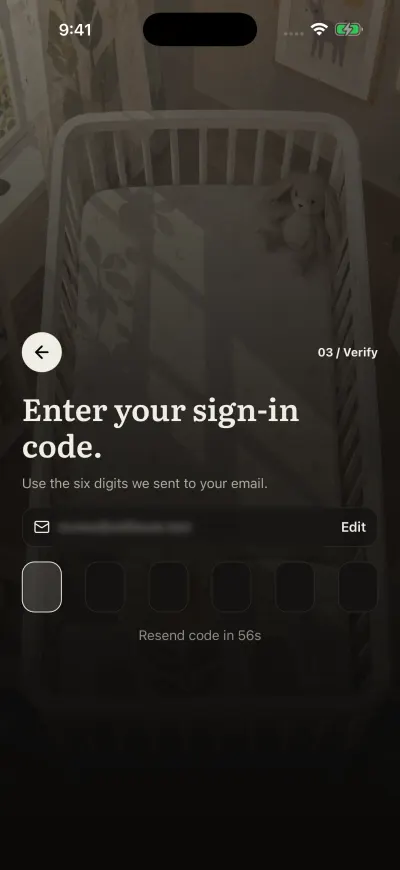
Type the six digits. The app checks them by itself.
The code works for 10 minutes. Typed the wrong address? Tap Use a different email at the top, or Edit next to your address.
The code does not arrive
- Wait a minute. The email comes from Veilleuse.
- Look in your spam or junk folder, and in the other tabs of your mail app.
- Check the address shown on the code screen, letter by letter.
- Under the six boxes, a countdown runs for one minute. When it shows Resend code, tap it to get a new code.
Use the newest code. An older one may have stopped working.
With Apple or Google
- Tap Continue with Apple or Continue with Google.
- Apple or Google opens a small window over the app. Confirm with Face ID, or choose your Google account.
- You are back in Veilleuse, signed in.
If you close that window, nothing happens and you can choose another way.
One account, same email
Your email, Apple and Google all open the same account when they use the same email address. If you chose Hide My Email with Apple, Apple gave Veilleuse a private address, and your real email opens a different account. Always sign in the way you did the first time.
If you see a message
- Failed to send code Check your address and your connection, then tap Continue again.
- Invalid code The code is wrong or more than 10 minutes old. Type it again, or ask for a new one.
- Too many attempts. Please wait before trying again. After 5 wrong codes, wait 15 minutes, then ask for a new code.
- Could not finish signing in. Check your connection and try again. Check your Wi-Fi or mobile data, then type the code again.
- We could not securely save your session on this device. Restart the app, then request a new code. Close Veilleuse completely, open it again and ask for a new code.
- Apple sign-in failed or Google sign-in failed Try once more, or use Continue with email with the same address.