
A few screens about you and your baby, then a short tour. Nothing is lost if you stop halfway.
Short answer
Read each screen, then slide the button at the bottom all the way to the right to go on. The arrow on the left of the button takes you back.
Veilleuse is for iPhone.
How every screen works
At the bottom of each screen there is a long button with a round handle on its left. This button slides. Tapping it does nothing.
- Put your finger on the round handle on the left.
- Keep your finger on the screen and slide it all the way to the right.
- Let go at the end. The next screen opens.
If you let go too early, the handle slides back. Nothing is lost: try again. The small dots under the button show how far you are.
To go back, tap the round arrow on the left of the button. You can also slide the whole screen with your finger: to the right to go back, to the left to go on.
1. The welcome screen
It says Welcome to Veilleuse. The button is Get started.
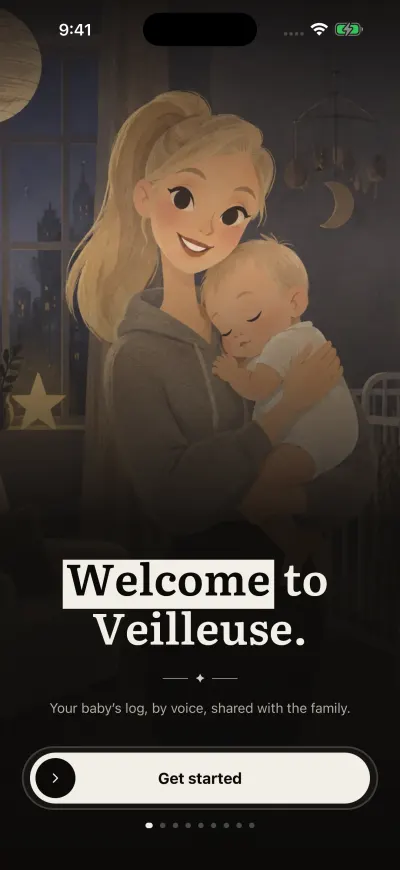
The welcome screen. The button at the bottom slides.
2. Your name
The app asks What should we call you? Type your first name or a nickname. Your family sees this name. You can leave it empty and change it later in Settings. Then slide Continue.
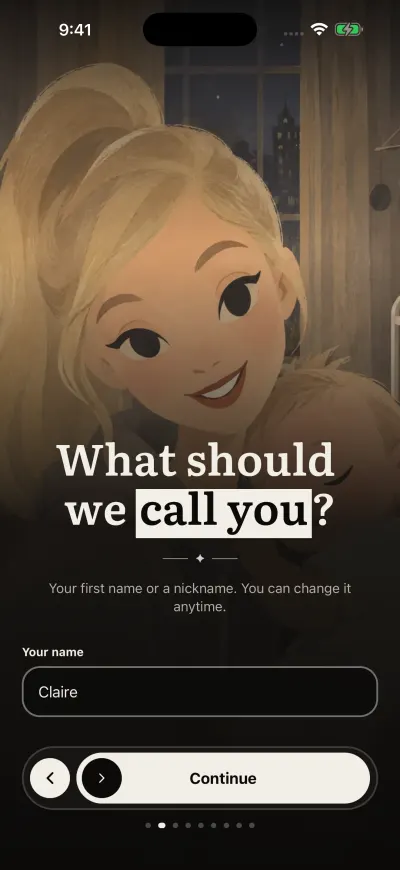
Your name. Then slide Continue.
3. The price
If you don’t have a subscription yet, the next screen says Veilleuse is free to start. Logging one baby by hand is free. The Family plan is $11.99 a month or $79.99 a year, for 3 babies and 3 carers. On the monthly plan, the first month is at half price. If the store has not answered, or the offer is not open to you, the page only says what is free and what the Family plan adds. Nothing is charged here. Slide Show me.
If you see Prices will show at the end, once the store answers., the App Store has not answered yet. You can go on. The prices show on the last screen.
4. Your baby
The app says Tell us about your baby.
- Face: a row of round faces. Slide the row left or right with your finger, then tap a face. Tap it again to remove it. You can skip this.
- Baby name: type your baby’s name. This one is needed.
- Birth date: tap the date. A wheel opens. Put your finger on the day, the month or the year and slide up or down. Then tap Done.
- Sex: tap Girl or Boy, or leave it. The faces then show girls or boys only.
Until the name is filled in, the button is pale and says Add your baby’s name Once it is filled in, slide Continue.
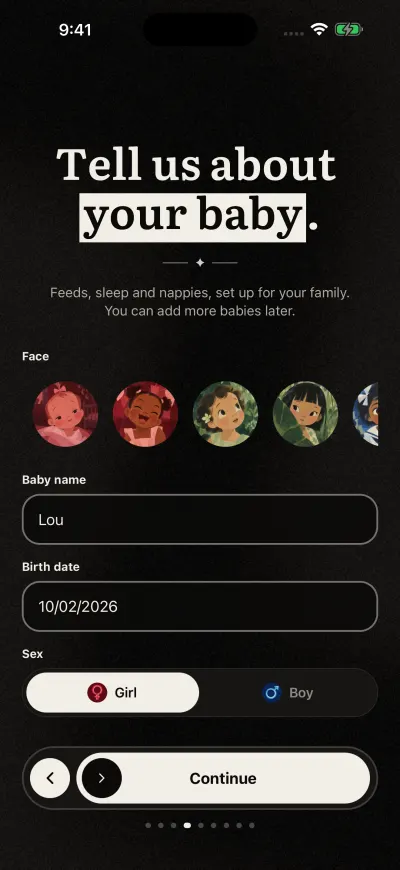
Your baby's name first. The button wakes up once it is filled in.
5. The tour
Next comes a short guided tour of the real app. See the guided tour, step by step.
If you don’t have a subscription yet, the last screen offers the Family plan. You choose there: subscribe, or tap Continue free to start on the Free plan.
Joining a family with a code
If someone already uses Veilleuse for your baby and gave you a code:
- On the baby screen, tap I have an invite code.
- Type the 8-character code.
- Slide Join the family.
Until the code has 8 characters, the button says Type the 8-character code If you see That code did not work. Check it and try again., check the code or ask for a new one. If you see This family has no room for another carer. Ask the person who invited you to make room., that family already has 3 carers.
If you stop halfway
Close the app at any time. Next time, Veilleuse starts again on the welcome screen, with your name and your baby already filled in. Slide through to where you were.
If a save does not work
A box says Error with We could not save your name. Please try again., We could not save your baby. Please try again. or Could not save your progress. Please try again. Check your Wi-Fi or mobile data. Then slide the button again, or tap Try again. What you typed is still there.