Six short steps. You hear each choice before you pick it, and the mix is saved at the end.
Short answer
Tap Create in the bar on the left. On each step, move the card up to see the next choice, then slide the button all the way to the right to pick it.
Open Create
Tap Create, the button with a + in the bar on the left of the screen.
1. The first screen
It says Create a mix. Pick the sounds and the music. Berceuse builds the mix for you. At the top you see the time of day, for example Blue hour, and your local time.
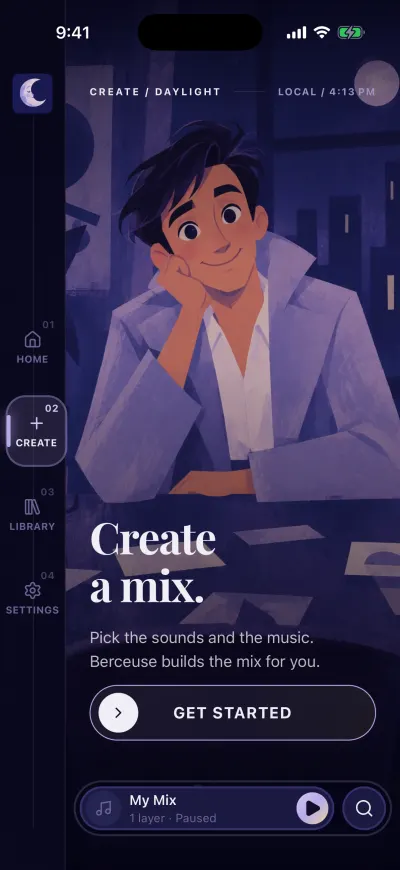
Create, in the bar on the left.
At the bottom, a long button has a round handle on its left: Get started. This button slides. Tapping it does nothing.
- Put your finger on the round handle.
- Keep your finger on the screen and slide it all the way to the right.
- Let go at the end. The next step opens.
Every step works the same way. The white round button with an arrow, on the left of the slide button, takes you back one step.
2. Who the mix is for
The app asks Who is this mix for? There are two cards: Me and A baby.
- The first card fills the screen. To see the other one, put your finger on the picture and move it up.
- When the card you want is on the screen, slide Choose all the way to the right.
3. What you need
The app asks What do you need? Move the cards up to see each choice, for example sleep or calm. A mix for a baby has no focus choice.
Slide Choose on the one you want.
4. The sounds
The title says Choose the sounds. Each card is a set of sounds. Their names are listed under the title of the card.
- Wait a moment. The sounds of the card on the screen start playing, and the ring around the picture moves with them.
- Move the card up to hear the next set. Move it down to go back.
- When you like one, slide Choose.
The button only slides once you have heard the card. If it does not move, wait until the sound starts.
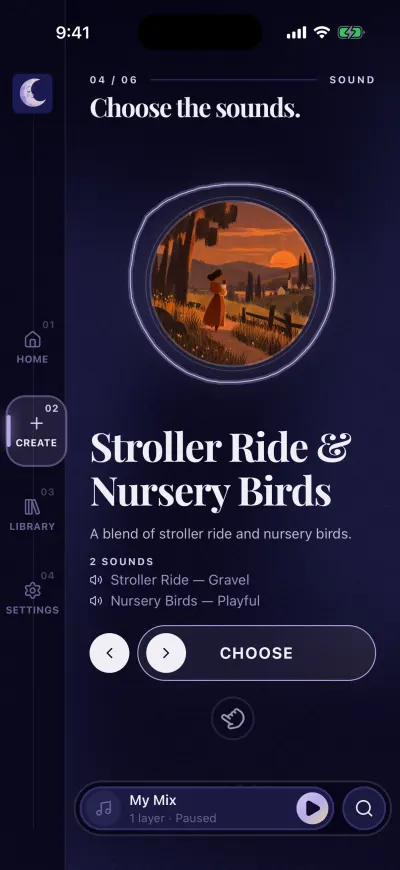
The button slides once you have heard the card.
5. The music
The title says Choose the music. Each card is a playlist. Under PAIRED WITH you see the sounds you picked: you hear the music with them.
Move the cards up to hear them, then slide Choose on the one you want.
6. The cover
The title says Choose a cover. Tap a cover, then create your mix.
- Scroll the pictures up and down.
- Tap the one you want. The others go darker.
- A slide button appears at the bottom: Create this mix. Slide it all the way to the right.
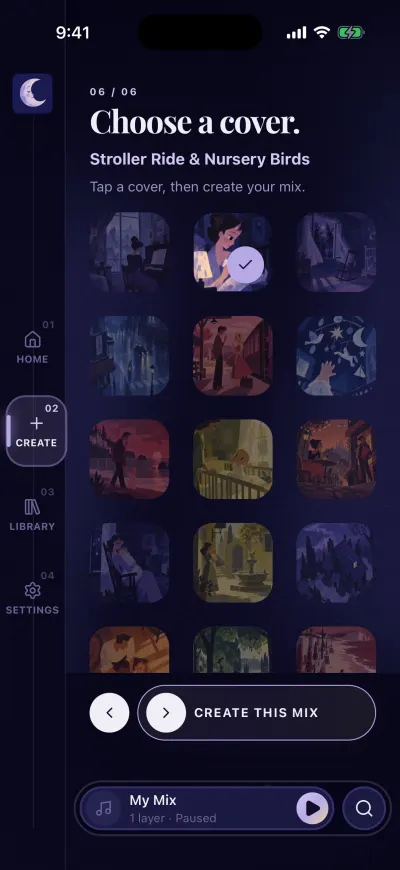
Pick a cover, then slide Create this mix.
After the last step
The mix is saved, the mixer opens and the mix plays. You find it later in your Library, under Created. It is also kept on your phone, so it plays without internet.
Without a subscription, the subscription screen opens at the last step.
If you leave halfway
If you open another tab before the last step, Create starts again from the beginning the next time. Nothing was saved yet, so nothing is lost.
If a message appears
- Nothing here yet. There is no content for this tag right now. Go back and pick another one. Tap Back and pick another choice.
- Needs a connection: the last step needs the internet. Connect to Wi-Fi or mobile data, then slide again.
- We could not complete that action. Your current mix was left unchanged. Slide Create this mix again in a moment.