
Name it, pick a picture, then tap Save. It goes to your Library.
Short answer
In the mixer, tap the name at the top to change it, tap the small picture to pick a cover, then tap Save at the bottom left.
1. Give it a name
Do this before you save.
- In the mixer, tap the name of the mix at the top.
- A window opens: Mix Name. Enter a name for your mix
- Type the name.
- Tap the button with the tick.
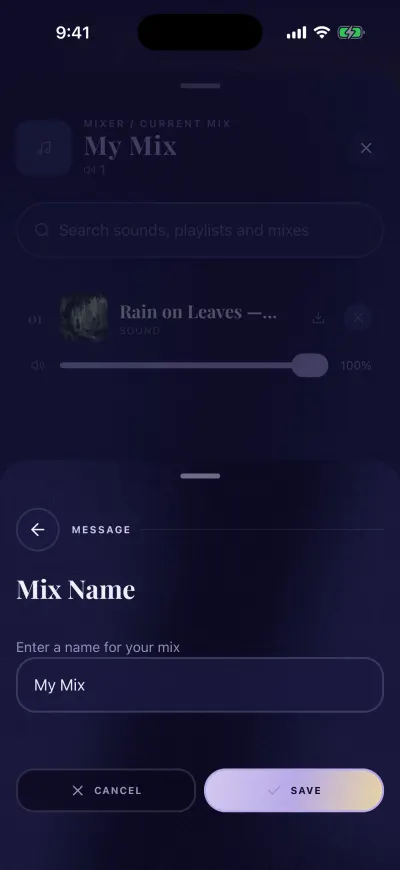
Type the name, then tap Save.
If tapping the name does nothing, this mix is already saved or comes from Berceuse as it is. See rename a mix.
2. Pick a cover
- Tap the small picture at the top left of the mixer.
- The screen Choose a cover. opens.
- Scroll, then tap the picture you want.
- You are back in the mixer with the new picture.

Tap a picture for your mix.
To leave without changing it, tap the arrow at the top left.
3. Save
- Tap Save, at the bottom left of the mixer.
- The button turns into Saved with a tick.
- The mix plays.
Your mix is now in your Library, under Created. It is also kept on your phone, so it plays without internet.
Save is grey when the mixer has no sound. Music alone cannot be saved: add at least one sound.
Keep a Berceuse mix as your own
Open a mix from Berceuse, play it, then tap Save in the mixer. A copy goes into your Library, under Created.
If a message appears
- Needs a connection: saving needs the internet. Connect to Wi-Fi or mobile data, then tap Save again.
- We could not complete that action. Your current mix was left unchanged. Your mix is still in the mixer. Tap Save again in a moment.
Without a subscription, Save opens the subscription screen.