
Your mix changes as you go. Each change stops the sound for a moment, then you press play.
Short answer
In the mixer, tap the search bar, find a sound, then tap the + on the right of its line. To remove one, tap the cross on its line. Then tap the big round play button.
Add a sound or music
- Open the mixer: tap the bar at the bottom of the screen.
- Tap the search bar at the top: Search sounds, playlists and mixes.
- Type at least two letters, for example "rain". Or tap one of the tag pictures.
- Tap a line to hear a short preview.
- Tap the + on the right of the line. A tick replaces it: the sound is in your mix.
- Tap the cross on the right of the search bar to go back to your mix.
- Tap the big round play button at the bottom.
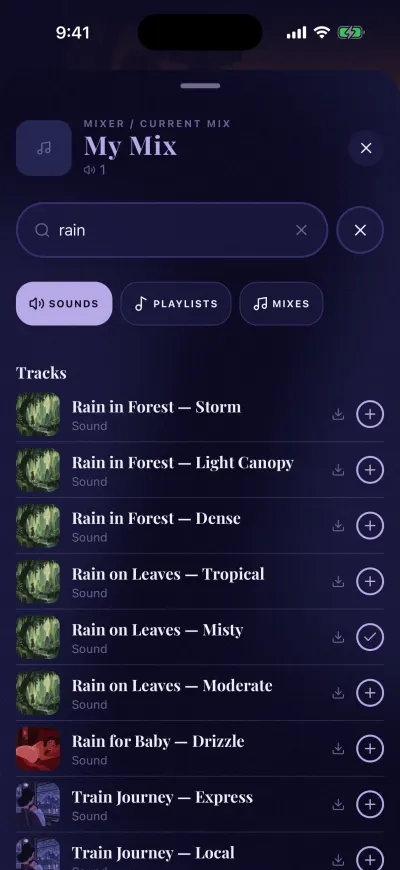
Tap the + to add a sound. A tick means it is in.
Each change pauses the sound. Tap the round play button again to hear the new mix.
Where it goes
- A sound (Sound) gets its own line, with its own volume.
- A music track (Music) goes into the music line, at the end of the list.
- The + on a playlist puts that playlist in the music line. It replaces the music that was there. Your sounds stay.
- The + on a mix replaces everything in the mixer with that mix, and it plays.
How many sounds fit
On iPhone
On iPhone, a mix holds up to 10 sounds. Music does not count. When it is full, the + does nothing. Remove a sound first.
On Android
On Android, a mix holds up to 6 sounds. Music does not count. When it is full, the + does nothing. Remove a sound first.
Remove one sound
- In the mixer, find the line of that sound.
- Tap the cross on the right of its name.
- The line goes away. Tap the round play button to hear the rest.
To remove the music, tap the cross on the music line. Your sounds stay.
Empty the whole mixer
- Tap Clear, at the bottom right of the mixer.
- The app asks Clear Mixer: Remove all layers from the mixer?
- Tap Clear, the red button.
The mixer is now empty. Your saved mixes are not deleted. They stay in your Library.
If the message Could not clear mixer appears, close the mixer, open it again, then tap Clear once more.
When you change a Berceuse mix
When you add, remove or move the volume of a sound in a Berceuse mix, it becomes your own mix. Its name and picture go back to the plain ones. Save it to keep it: see save a mix.