
Type a word, or tap a tag. Then hear it, add it or open it.
Short answer
Tap the magnifying glass at the bottom right. Type at least two letters, or tap a tag. Tap a line to hear it, and the + to add it to your mixer.
Open search
Tap the magnifying glass at the bottom right of the screen, on the right of the long bar. The search screen opens with Search Berceuse.
You can also search from inside the mixer: tap its search bar, Search sounds, playlists and mixes.
Search by name
- Tap the search box at the top.
- Type at least two letters, for example "ocean" or "piano".
- The results appear under it: sounds, playlists and mixes.
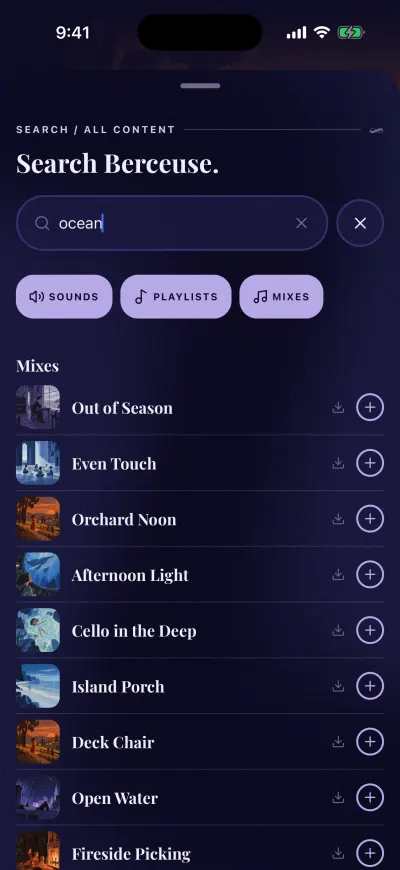
The + adds it to what is playing.
Under the search box, three buttons choose what to show: Sounds, Playlists and Mixes. Tap one to hide that kind. Tap it again to show it.
To clear what you typed, tap the cross inside the search box.
Search by tag
Before you type, the screen shows tags in groups: Moments, Soundscapes, Music and Family.
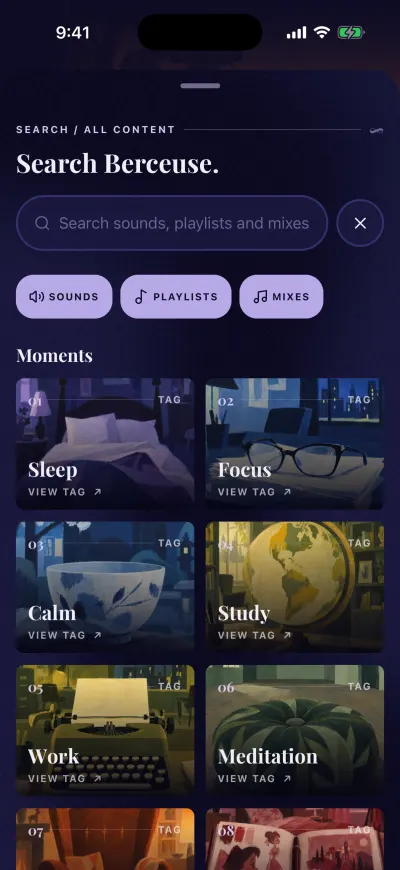
Tap the box to type, or tap a moment.
- Tap a tag picture, where it says VIEW TAG ↗.
- The results show everything with that tag.
- Type a word to look only inside that tag.
- To see all the tags again, tap the arrow on the right of the search box: Back to tags.
What to do with a result
- A sound or a music track: tap the line to hear a short preview. Tap the + to add it to your mixer. A tick shows it is in.
- A playlist: tap the line to open it. Tap the + to put it in your mixer.
- A mix: tap the line to open its page. Tap the + to play it right away.
- The arrow pointing down downloads it for offline.
A small lock instead of the + means it needs a subscription.
Nothing found
The app says No matches yet Try removing a tag or changing your search.
- Check the spelling, or try a shorter word.
- Check that Sounds, Playlists and Mixes are all lit.
- If you are inside a tag, tap Back to tags to search everywhere.
Close search
Tap the cross on the right of the search box. You can also pull the small bar at the top of the screen down.