The mixer is where your mix plays. Each sound has its own volume.
Short answer
Tap the bar at the bottom of the screen to open the mixer. Move the dot on each line to the right for louder, to the left for quieter.
Open and close the mixer
- Tap the left part of the long bar at the bottom of the screen, where the name of your mix is.
- The mixer slides up from the bottom.
To close it, tap the cross at the top right. You can also pull the small bar at the very top of the mixer down. The sound keeps playing.
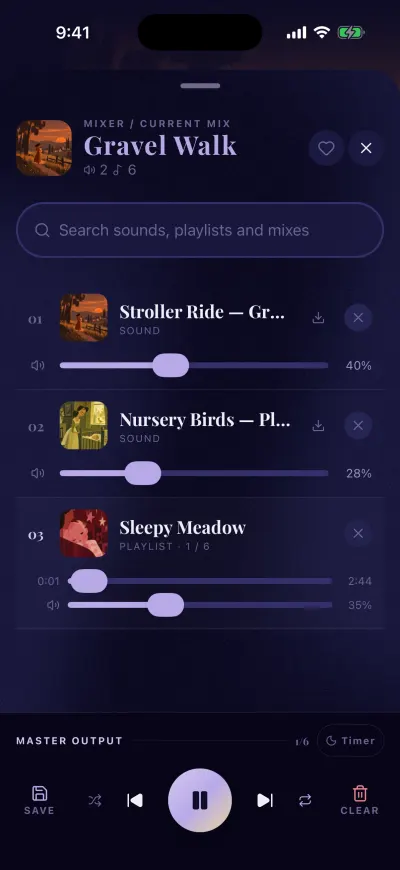
The mixer. Each sound has its own volume bar.
At the top
- The small picture and the name of the mix.
- Under the name: a speaker with the number of sounds, and a note with the number of music tracks.
- A heart, when the mix comes from Berceuse or from your Library.
- The cross that closes the mixer.
Under it, the search bar: Search sounds, playlists and mixes. It adds sounds and music.
Each sound
Each sound has its own line: a number, its name, its kind (Sound or Music), a download icon and a cross that removes it.
Under the name, a line with a dot sets its volume. The number on the right shows the volume, from 0% to 100%.
Change the volume of one sound
- Put your finger on the round dot of that sound.
- Keep your finger on the screen and move it to the right to make it louder, or to the left to make it quieter.
- Let go. The sound keeps that volume.
For the whole mix, use the volume buttons of your phone.
The music line
When your mix has music, its line is at the end of the list. It shows the track that plays now, then PLAYLIST and its place in the playlist, for example 2 / 12.
- The first line with a dot moves inside the track. Slide it to go back or forward.
- The second line with a dot is the volume of the music.
- The cross removes the music. Your sounds stay.
At the bottom
The line MASTER OUTPUT shows the number of the track that plays, or LIVE when there is no music. On its right, Timer sets a timer.
Under it, from left to right:
- Save keeps this mix in your Library.
- With music only: the crossed arrows play the tracks in any order, and the arrow before the play button goes to the track before.
- The big round button plays or pauses everything.
- With music only: the arrow after the play button goes to the next track, and the loop repeats the playlist. Tap the loop again to repeat one track, then again to stop repeating.
- Clear empties the mixer.
If the mixer is empty
It says Add sounds or music. Search above to add ambient sounds and music tracks. Tap that text or the search bar to add something. See add or remove sounds.
If a message appears
Playback Error: Could not control playback Tap the round play button again. If the message comes back, close the mixer, open it again from the bar at the bottom, then tap play. Your mix is still there.