
Everything about your account sits on one screen, at the bottom of the bar on the left.
Short answer
Tap Settings, the last button in the bar on the left. At the top: your name, your email and your subscription. Below: Legal & privacy, App language, then Sign Out and Delete Account.
Open Settings
Tap Settings, the last button in the bar on the left of the screen, with the gear.
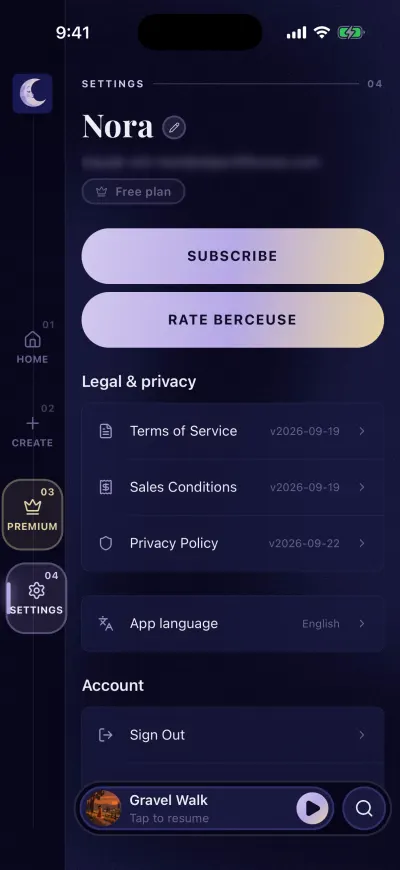
Settings, the last button in the bar on the left.
Your name, your email, your subscription
- Your name, in large letters. Tap it to change it. If you never chose one, it says Listener.
- Your email, the one you sign in with.
- A badge with a crown: your subscription. Premium active, Lifetime Premium or Free plan. If it says Status unavailable, the app could not check it right now. Check your connection.
The two big buttons
- Subscription shows your subscription and how to cancel it in the store. Without a subscription, the button says Subscribe and opens the offer.
- Rate Berceuse opens the App Store or Google Play, on the page where you can leave a review.
When a new version of Berceuse is out, a small red 1 appears on Settings, and the second button becomes Update. Tap it to open the store and update. If you see Unable to open the store. Please try again., open the App Store or Google Play yourself and update from there.
Legal & privacy
Three documents: Terms of Service, Sales Conditions and Privacy Policy. On the right, the version you accepted, or Not accepted.
Tap a document to read it. It opens with its version and the date it was published. Links in it open in your browser. To close it, tap the arrow at the top left.
If you see We could not load this document. Check your connection and try again., check your Wi-Fi or mobile data, then tap Try again.
App language
Berceuse follows your phone's language by default. To choose another one:
- Tap App language.
- Tap a language. Or tap System default to follow your phone again.
The screen closes and the app changes language right away.
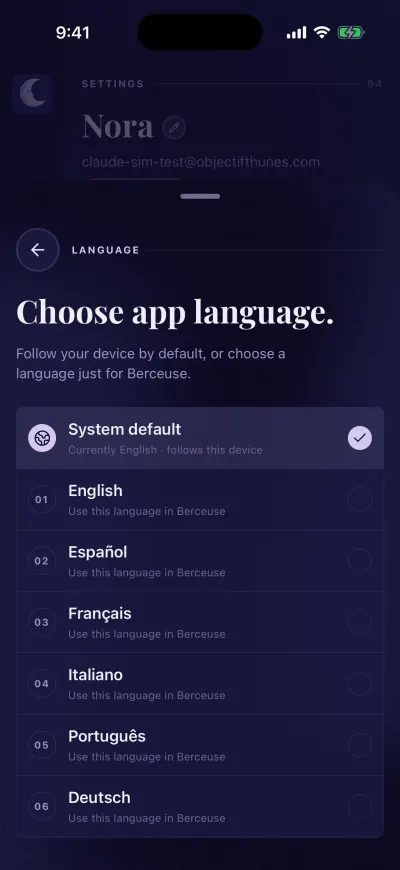
Tap a language. The app changes at once.
Account
At the bottom of the screen:
- Sign Out The app asks Are you sure you want to sign out? Tap Sign Out again to confirm. Your mixes stay in your account. Sign in with the same email, Apple or Google account to find them again.
- Delete Account, in red. It deletes your account for good. Read Delete your account first.
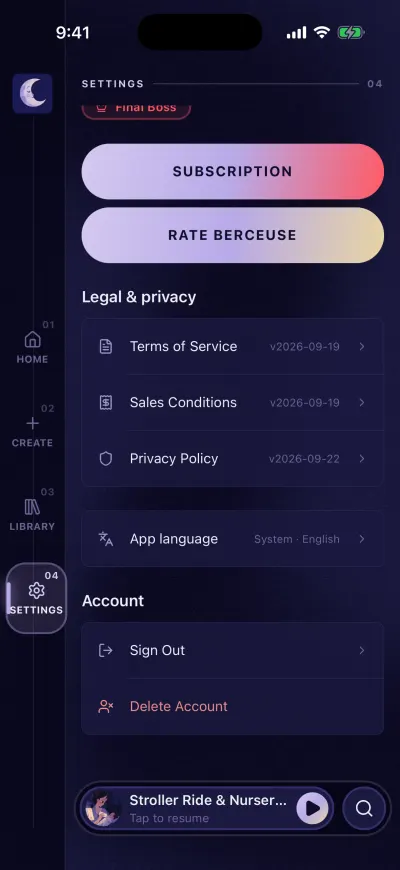
At the bottom: language, sign out and delete.