
Export a file from your old app, then pick it in Veilleuse. What is already in Veilleuse is never added twice.
Short answer
Export your data from Huckleberry or Nara Baby first. In Veilleuse, tap the round Baby button at the bottom right, scroll down, tap Import from another app and pick the file.
Veilleuse is for iPhone.
Before you start
- Importing is free for a baby you can log. On the Free plan, that is the first baby that was added. For another baby, Veilleuse shows the Family plan instead.
- Export your data from Huckleberry or Nara Baby first, with that app’s own export. Veilleuse can’t do this part for you.
- Save the file on your iPhone, for example in the Files app, so you can find it.
- The file must be 5 MB or less.
1. Pick the file
- Open the page of the baby the history is for: tap the round Baby button at the bottom right of the screen.
- Scroll down to the section named after your baby, with Import from another app and Export to a spreadsheet.
- Tap Import from another app.
- Your iPhone’s file picker opens. Find the file under Recents or Browse, and tap it.
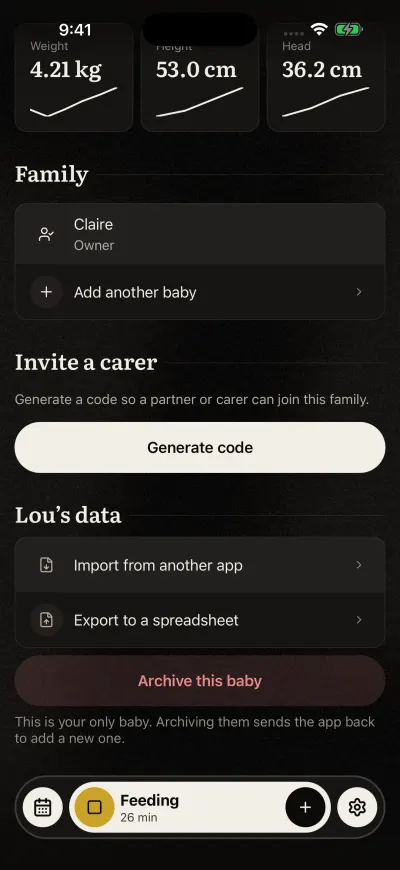
Import and export are under the baby's data.
In the first 14 days after you add a baby, a card Switching from another app? can show higher on the page. Its button does the same thing. Not now hides the card. The import stays lower on the page.
Apple’s page: Find files on your iPhone or iPad.
2. The import
Veilleuse sees by itself which app the file comes from. The screen says Importing. Keep the app open until it finishes.
- A Huckleberry file goes into the baby whose page you opened.
- A Nara Baby file with one child goes into that baby too.
- A Nara Baby file with several children: each child goes into the baby with the same name in Veilleuse. Capitals and accents don’t matter.
For a child with no baby of that name, Veilleuse asks who it is. Tap the baby it belongs to, or Leave out: nothing is added for that child.
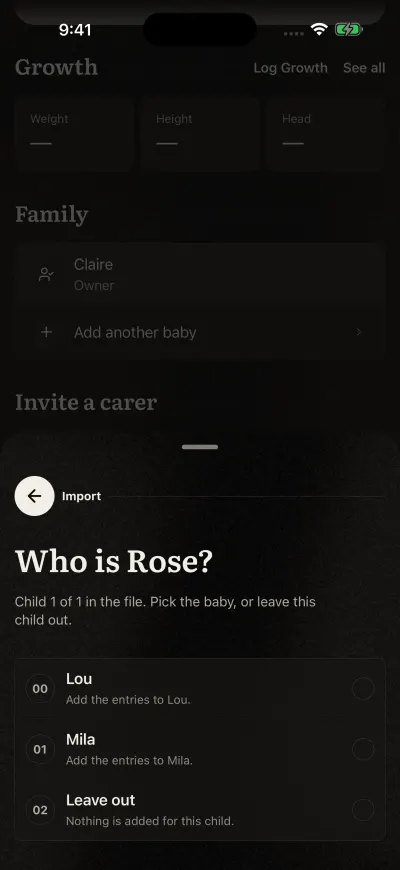
Tap the baby this child is, or Skip.
3. What was added
Under Added, you see how many entries of each kind came in. Already in Veilleuse counts the entries that were already there: same kind, same minute. They are not added twice.
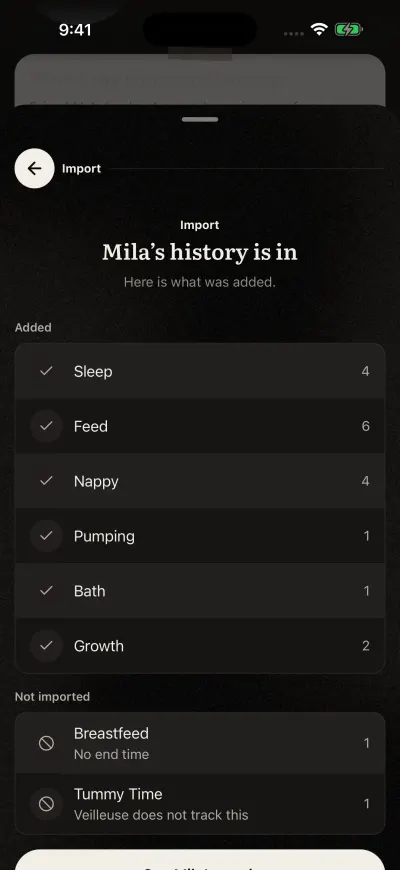
What came in. Undo is on this page too.
Under Not imported, you see the lines of the file that were left out, with the reason:
- Veilleuse does not track this: a kind of entry Veilleuse does not have.
- No end time: a sleep or a breastfeed with no end time.
- Could not be read: a date, a time or an amount that can’t be read, or a time in the future.
What comes in:
| From Huckleberry | From Nara Baby |
|---|---|
| Sleep, feeds (bottle, breast, solids), nappies, pumping, medicine, growth, bath | Sleep, breastfeeds, bottles, mixed feeds, nappies, pumping, growth, bath |
Tap the first button to see your baby’s week.
If nothing came in, Veilleuse says Nothing new in this file. Everything was already here. or Nothing from this file could be added.
Undo the import
- On the same screen, right after the import, tap Undo this import.
- Veilleuse shows Undoing, then Import undone.
Nothing from that file is left. The entries you logged yourself are not touched.
The undo button is only on that screen. If you see The import could not be undone. Check your connection and try again., check that your phone has internet, then tap Undo this import again.
Import the same file again
You can. Only what is missing is added. That is also the fix when an import stopped halfway.