Signing out is quick and keeps everything. Deleting is for good.
Short answer
Open Settings, tap the card at the top, then tap Sign out of SkipTube.
SkipTube is for iPhone.
Sign out of SkipTube
The two accounts sign out on their own.
- Tap Settings at the bottom of the screen.
- Tap the card at the top. The Accounts sheet opens.
- On the SkipTube account row, tap Sign out of SkipTube.
- A sheet asks Sign out of SkipTube? Tap Sign out of SkipTube again to confirm.
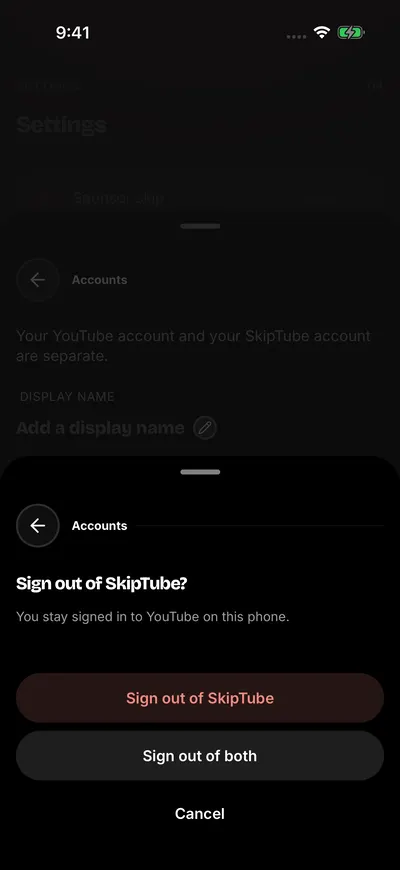
Pick what to sign out of.
If you are signed in to YouTube, the sheet says You stay signed in to YouTube on this phone. Signing out of SkipTube leaves YouTube alone. Otherwise it asks Are you sure you want to sign out?
To change your mind, tap Cancel.
Sign out of both
If you are signed in to YouTube too, the same sheet has Sign out of both. Tap it to sign out of both at once. SkipTube signs out of YouTube first. If that fails, you stay where you are and can choose again.
Sign out of YouTube only
- Open the Accounts sheet, as above.
- On the YouTube account row, tap Sign out of YouTube. SkipTube stays signed in.
What changes when you sign out
- You stay on the screen you were on. SkipTube does not send you to a sign-in.
- The queue on this phone is cleared. Your account keeps its copy.
- SkipTube is on the free plan while signed out. Pro comes back when you sign in again.
- Your saved videos, history and settings are on your account. Nothing is lost.
Delete your SkipTube account
Deleting is for good. SkipTube Pro is one payment, so there is no subscription to cancel first.
- Open the Accounts sheet.
- Scroll to the bottom.
- Tap Delete Account, in red. It only shows when you are signed in to SkipTube.
- A message says: This permanently deletes your account and all your data. This cannot be undone.
- To go on, tap Delete Account in the message. To stop, tap the other button.
- SkipTube signs you out. Your account is deleted.
What deleting removes
It removes your account, your saved videos, your history, the channels you follow, where you stopped in videos, your queue, your settings, your votes, your sponsor reports and your sign-ins. It also removes the Apple sign-in link.
Your YouTube account is not touched.
The Pro payment stays with your Apple Account. It is not refunded. To use Pro again, make a new SkipTube account, then tap Restore purchase under the Get Pro button.
If it does not work
If you see Could not delete your account. Please try again., your account is still there. Check your Wi-Fi or mobile data, then try again from step 3.