
Two or three screens, then you build your first mix. If you close the app halfway, you start again from the welcome screen.
Short answer
Read each screen, then slide the button at the bottom all the way to the right to go on. The round arrow on the left of the button takes you back.
These screens come right after you sign in for the first time. You see them once per account.
1. The welcome screen
It says Welcome to Berceuse. At the bottom there is a long button with a round handle on its left: Get started.
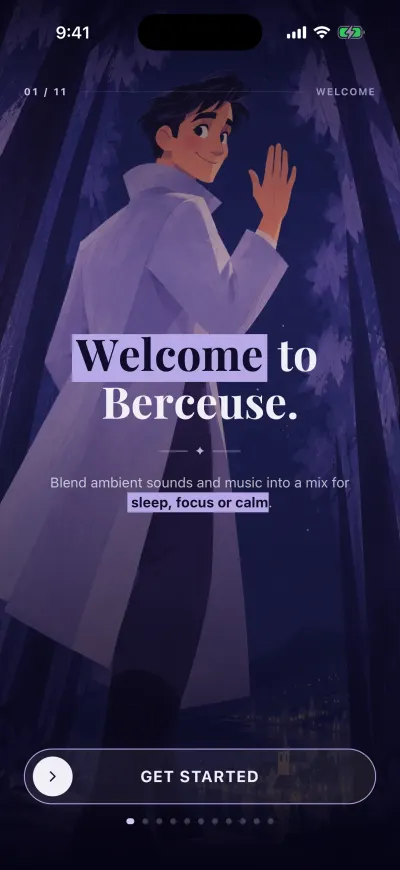
The welcome screen. The button at the bottom slides.
This button slides. Tapping it does nothing.
- Put your finger on the round handle on the left.
- Keep your finger on the screen and slide it all the way to the right.
- Let go at the end. The next screen opens.
If you let go too early, the handle goes back to the left. Nothing happens. Try again, slowly, to the end.
2. Your name
The app asks What should we call you? If the app already knows your name, it is filled in.
- Tap the box under YOUR NAME.
- Type your first name or a nickname. You can also leave it empty.
- Slide Continue all the way to the right.
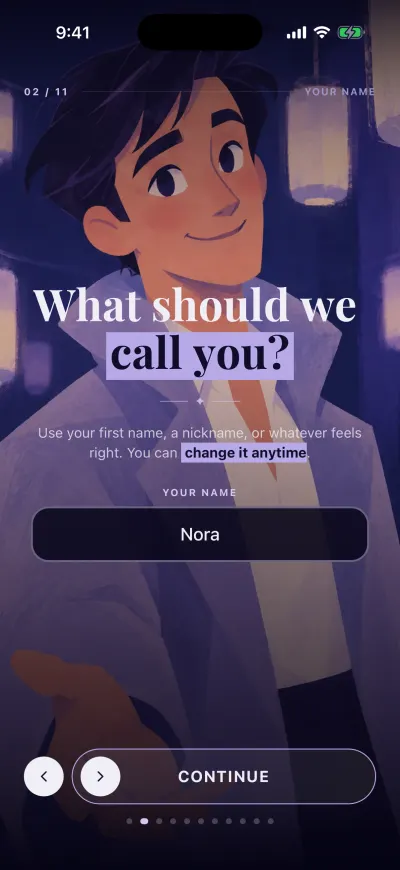
Your first name. Then slide Continue.
The round button with an arrow, on the left of the slide button, takes you back to the welcome screen. You can change your name later: tap Settings in the bar on the left, then tap your name at the top.
3. The price
This screen shows only if you don't have a subscription yet. It says Berceuse is not free. It tells you the price before you build anything, in the currency of your store.
Slide Build my mix all the way to the right. This screen has no back button: to go back, slide the whole screen to the right.
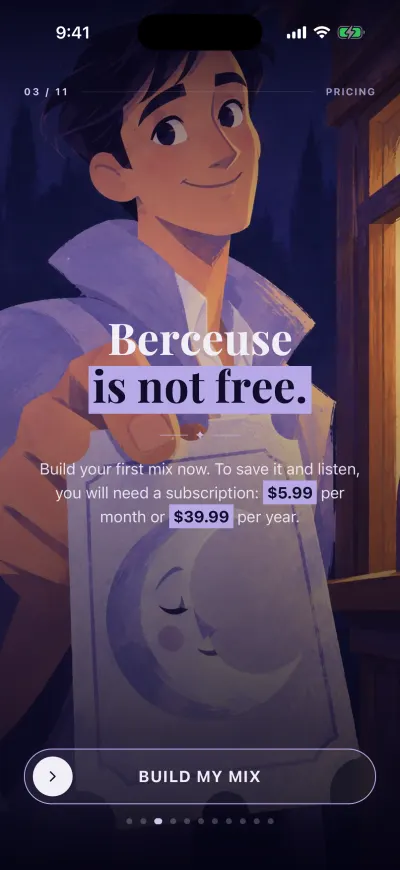
The price, before you start. Nothing is charged here.
4. Your first mix
Next you build your first mix, in a few short steps. Each step works the same way: look, listen, then slide. The guide on your first mix shows each step.
Move between these screens with your finger
You can also move the whole screen. Slide it to the left to go on, to the right to go back. On the last of these screens, use the slide button.
If a message appears
- We could not save your name. Please try again. The app could not reach us for a moment. Check that you have Wi-Fi or mobile data. The slide button stays filled: tap the round arrow on its left, slide Get started again, then slide Continue. Your name is still in the box. Nothing is lost.
- Prices will show at the end, once the store answers. The App Store or Google Play has not answered yet. Nothing is wrong. Go on: the prices show on the last screen.