
Seven short steps after the first screens. You hear the sounds before you choose, and you can go back at any time.
Short answer
Slide your finger up or down to see each choice. Slide the button at the bottom all the way to the right to choose it. The round arrow on its left takes you back one step.
These steps come right after the first screens. The dots at the bottom of the screen show how far you are. The number at the top left does too, for example 05 / 11.
1. Create a mix
The screen says Create a mix. Slide Get started all the way to the right.
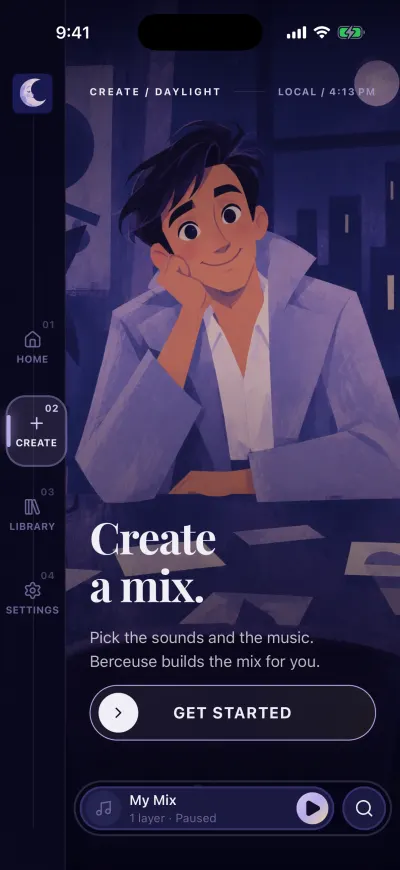
Slide Get started to build your mix.
2. Who the mix is for
The title is Who is this mix for? There are two cards: Me and A baby.
- Put your finger in the middle of the screen and slide it up. The next card comes up.
- Slide down to go back to the first card.
- On the card you want, slide Choose all the way to the right.
The small hand that moves under the button reminds you that the cards move up and down.
3. What you need
The title is What do you need? Each card is one need, like sleep or calm. Slide up or down to see them all, then slide Choose on the one you want.
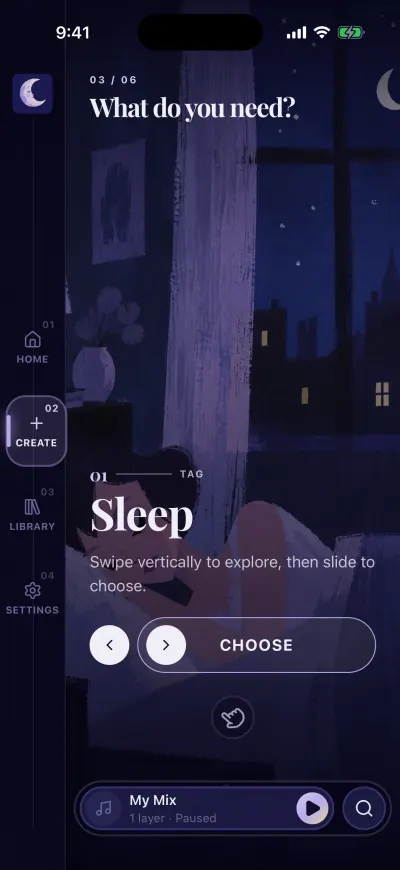
One card per need. Slide up or down for the others.
4. The sounds
The title is Choose the sounds. Each card is a pair of sounds. It starts playing by itself, and the ring in the middle moves with the sound.
- Listen to the card on the screen.
- Slide up for the next pair.
- When you like one, slide Choose.
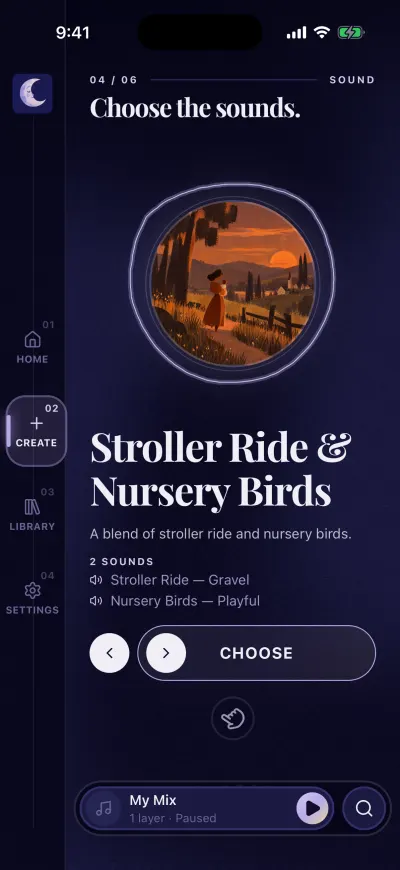
Listen to the card, then slide Choose.
The button unlocks once you have heard the card. Until then, the handle shows a small spinning circle and does not move. Wait a few seconds. If a sound cannot play, the button unlocks anyway.
5. The music
The title is Choose the music. Each card is a playlist. You hear it together with the sounds you chose, listed under PAIRED WITH. Listen, slide up for another one, then slide Choose.
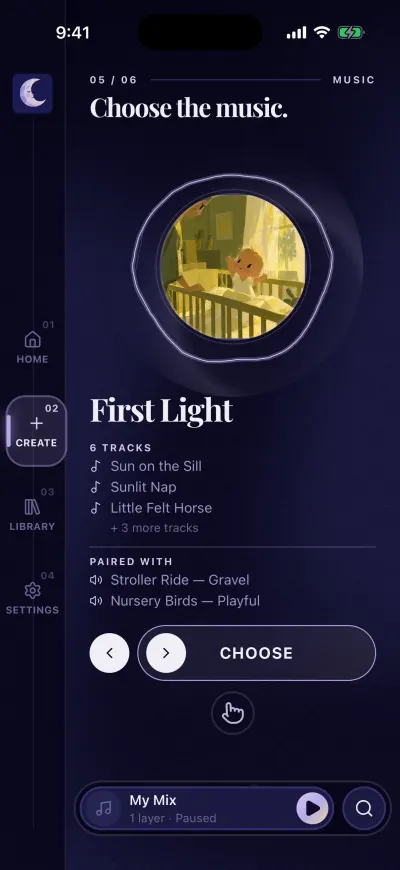
The music plays with the sounds you chose.
6. The cover
The title is Choose a cover.
- Tap the picture you like. The other pictures fade.
- A slide button appears at the bottom: Review this mix. Slide it all the way to the right.
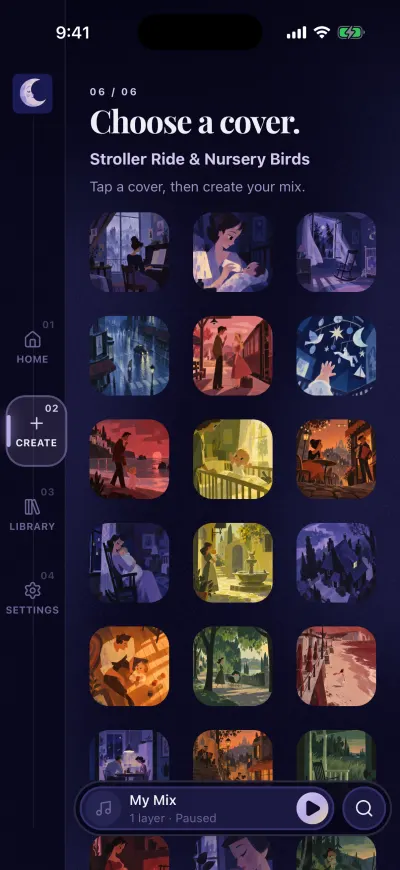
Tap the picture you like.
7. Check your mix
The title is Review your mix. It shows your sounds and your music.
- To keep this mix, slide Create this mix all the way to the right.
- To choose everything again, tap Start over under the button. You go back to the screen with your name.
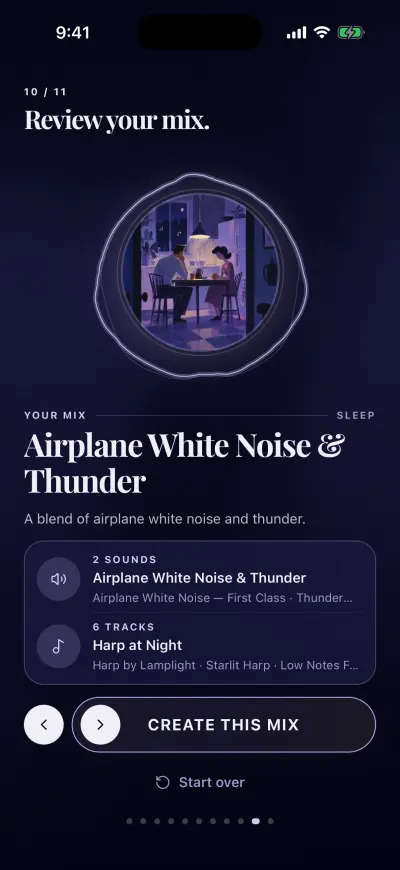
Check your mix, then slide the button to keep it.
What comes next
- If you already have a subscription, your mix is saved. The mixer opens and your mix plays.
- If you don't, the last screen is the subscription: three days free, then $5.99 a month or $39.99 a year (US prices, your store shows yours). When it is active, your mix is saved and the mixer opens. If you already pay on another phone, tap Restore on that screen.
Go back one step
- Tap the round button with an arrow, on the left of the slide button.
- Or slide the whole screen to the right.
On Android
- Or use the back button or the back gesture of your phone.
If a message appears
Could not save your progress. Please try again. Your mix is already saved. Only the very last step did not reach us. Check that you have Wi-Fi or mobile data, then tap Try again under the message. The mixer then opens.