The queue is a list of videos that play one after another. It is part of SkipTube Pro, and it follows your account to your other phones.
Short answer
Open a video's menu and tap Add to queue.
SkipTube is for iPhone.
Add a video
Adding a video needs Pro. On the free plan, the button opens a panel that says what Pro adds. See Free and Pro.
- Open a video's menu. See The video menu.
- Tap Add to queue. The menu closes.
Queue under the video only opens the queue. It does not add the video you are watching.
A video is in the queue once. Adding it again changes nothing. The queue holds up to 200 videos.
A Short's menu has no Add to queue, because Shorts have no queue.
Open the queue
Tap Queue under the video. A tall panel opens with the video at the top.
The same rows are at the top of Up next, when you have Pro and videos waiting.
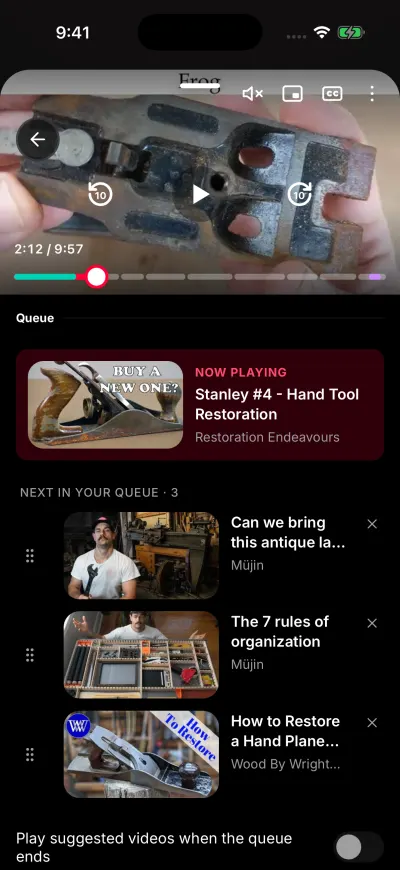
Drag the handle to change the order. Tap the x to take a video out.
The panel has these parts, from the top.
- Now playing: the video that plays now.
- Next in your queue · …: the videos lined up after it, with their number.
- A switch at the bottom, Play suggested videos when the queue ends
- Clear the queue, at the very bottom, when the queue has videos.
Change the order
- Put your finger on the handle at the left of a row, the three short lines, and hold it.
- Slide the row up or down.
- Lift your finger where you want it.
Tap a row to play that video now. Tap the small x at the right of a row to take it out. A row has no move up button. With VoiceOver, each row has the actions Move up and Move down instead.
To empty the queue, tap Clear the queue. It goes at once, with no question first.
What plays next
When a video ends, the next one in the queue plays. A video that has played leaves the queue. You can also tap next on the Lock Screen to play the next one.
When the queue ends, the switch Play suggested videos when the queue ends decides.
- On: YouTube's suggested videos keep playing.
- Off: the video stops and shows a button to play it again.
This is the same switch as Autoplay next video in your Clean player settings.
On your other phones
With Pro and a SkipTube account, your queue follows you to every phone you are signed in to. Signing out of SkipTube clears the queue on that phone. See Sign out or delete your account.
An empty queue
A panel that says Nothing in the queue yet is waiting for you. Add a video from its menu. See The queue says it is empty.