The sleep timer stops the video for you after a time you pick, or at the end of the video. It is part of SkipTube Pro.
Short answer
Tap Sleep in the row under the video, then pick a time or End of video.
SkipTube is for iPhone.
Set the timer
You need Pro for this. On the free plan, the button opens a panel that says what Pro adds.
- On the Watch screen, tap Sleep in the row under the video. The Sleep timer panel opens.
- Pick one: Off, 10 minutes, 15, 30, 45 or 60 minutes, or End of video.
- The panel closes by itself. The timer is on.
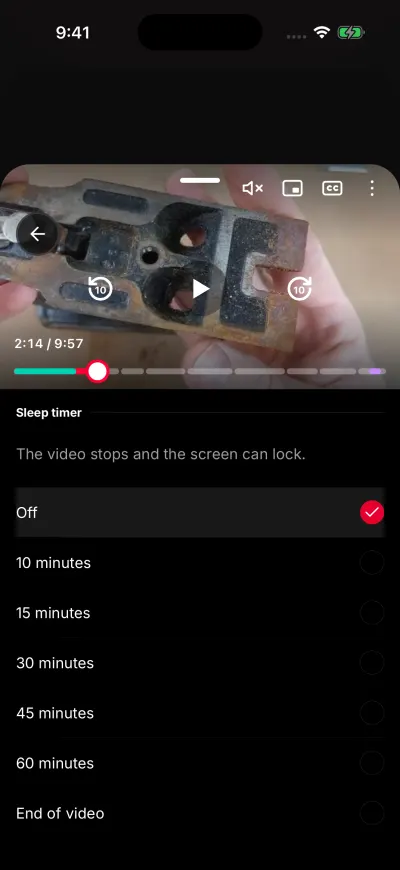
Pick when the video stops.
The panel says The video stops and the screen can lock. The one you picked is ticked, so open it again to see what is set. The button under the video shows the time too, for example … min.
What happens when it ends
- A time you picked: the video pauses when the time is up. The screen can lock, and nothing plays after.
- End of video: the video plays to its end, then holds. The next video in the queue does not start. YouTube's suggested video does not start either. A button lets you play it again.
After either one, the timer goes back to Off. Set it again if you want it again.
The timer keeps running when the screen is locked. It also keeps its time when the next video in your queue starts. Closing the player ends it.
To stop the timer early, open the panel again and tap Off.
A Short has no sleep timer.
Start one with every new video
You can have a timer start each time you open a new video.
- Tap Settings.
- Under Pro, tap Playback.
- Tap Sleep timer and pick a time.
This starts the timer on the first video after the player was closed. The next videos in the same session keep the timer that is running. A timer that ran out or that you turned off does not come back by itself.