
Home is today. Every other day is in the week, with one small chart for each kind.
Short answer
Tap the calendar square at the far left of the bar. Tap a day’s column to see its entries. The arrows at the top change the week. The week is part of the Family plan.
Veilleuse is for iPhone.
Open the week
- Tap the calendar square at the far left of the bar at the bottom.
- A page slides up with this week.
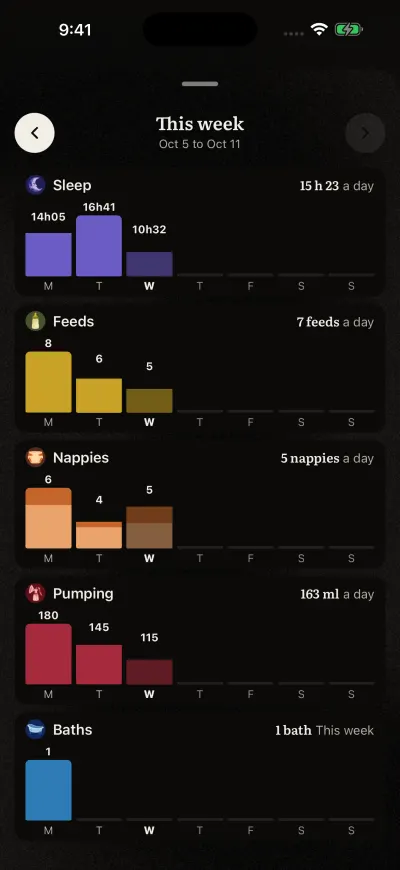
The week. Tap a day's column to open it.
The week is part of the Family plan. On the Free plan, the square has a small lock, and the plans screen opens instead.
Read the week
At the top it says This week, Last week or the week’s first day, with its dates under it. Then one small chart for each kind: Sleep, Feeds, Nappies, Pumping, Baths and Tooth brushing. Each column is one day, with its number over it.
On the right of each title, a number sums up the week. For sleep, feeds, nappies and pumping, it is the daily average, with a day. For baths and tooth brushing, it is the total, with This week.
Go to another week
Tap the left arrow at the top for the week before. Tap the right arrow to come back. The right arrow does nothing on the current week.
Open one day
- Tap a day’s column in any chart.
- The day opens in the same page, with the entries of that chart’s kind, newest first.
- A row of chips at the top shows All, then each kind logged that day. Tap a chip to see another kind, or All for everything.
- Tap an entry to change it or delete it.
- To come back to the week, tap the arrow at the top left.
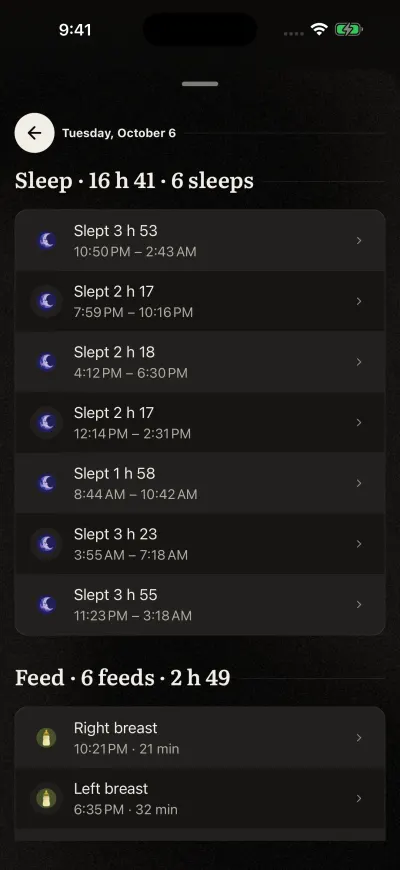
One day, newest first. Tap an entry to change it.
A day with nothing logged says Nothing logged that day.
Close the week
Put your finger on the top of the page and pull it down. Or tap the dark part of the screen above it.