While a sleep, a breastfeed or pumping runs, your lock screen shows it. You can stop it without unlocking.
Short answer
When a timer runs, a card shows on your lock screen with the time running. Tap the round stop button on its right. If the card is missing, open Veilleuse once, and check that Live Activities are allowed in your iPhone Settings.
Veilleuse is for iPhone.
What you see
While a timer runs, a paper note sits on your lock screen:
- your baby's name and what is happening,
- the time running, which counts by itself,
- when it started,
- a round black stop button on the right.
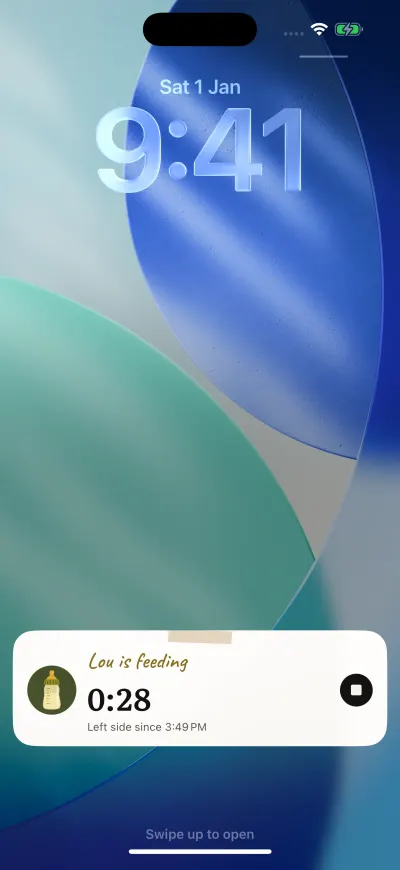
The timer on the lock screen. The round button stops it.
On an iPhone with a Dynamic Island, the timer also shows at the top of the screen while you use other apps. Touch and hold it to open it bigger, with a wide Stop button.
Tap the card itself to open Veilleuse on Home.
Stop it from there
Tap the round stop button. You do not need to unlock your phone. The card goes away and the entry is saved with its end time. With no connection, the stop is kept on your phone and sent when the connection comes back. The stop usually reaches us even when Veilleuse is closed.
The stop button needs iOS 17 or later. On iOS 16, the card shows with no button: tap it to open Veilleuse and stop the timer there.
Stopped on another phone
When someone in the family stops a timer on their phone, it stops on yours at once: on Home, in the bar and on your lock screen. A change made on another phone, such as a new start time, shows on yours at once too.
Only one timer shows
If a sleep and a feed run at once, the card shows the one started last. Stop it, and the card shows the other one.
The card follows the baby shown in the app. If you switch to another baby, the card shows that baby's timer, or goes away.
The card is missing
- Live Activities are off. Open the Settings app. Tap Apps, then Veilleuse (on iOS 17, scroll down and tap Veilleuse). Tap Live Activities and turn on Allow Live Activities. To see it while the phone is locked, also check Settings, Face ID & Passcode, Live Activities.
- The timer started on another phone. Your card shows once you open Veilleuse on your phone, or at once if Timers from others is on in Settings.
- The app could not start it. Open Veilleuse once. The card shows when the app is open.
- A paused family. The card is free on every plan, but it does not show while the family is paused.
- You signed out. The card goes away when you sign out.
Apple's own page: View Live Activities in the Dynamic Island.
The card turned grey
After 8 hours, the card turns grey, and your iPhone may then take it away. The timer still runs in Veilleuse. Open the app: the card comes back while the timer runs.