
The reminders, your name, your plan, how the app looks, help and your account, all in one screen.
Short answer
Tap Baby at the bottom right, then the gear in the same place. Settings opens.
Veilleuse is for iPhone.
Open Settings
- Tap Baby at the bottom right of the screen. It shows a small baby.
- The same button now shows a gear. Tap it.
- Settings opens. To close it, tap the round cross at the top right.
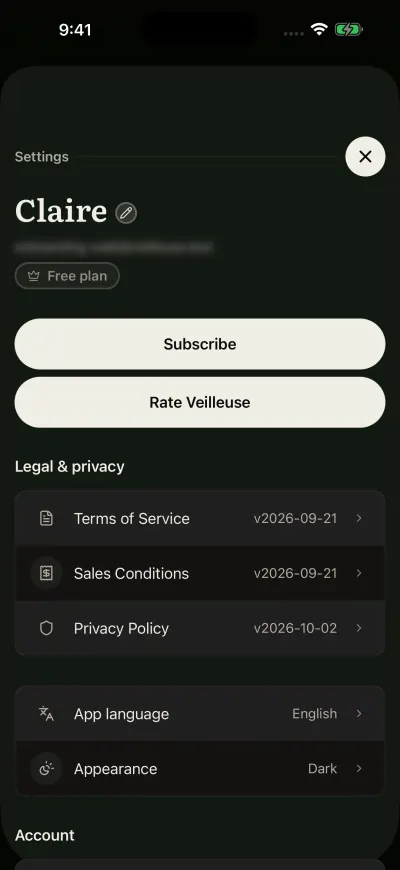
Settings. Your plan shows under your email.
Reminders
At the very top: Sleep reminder, Nappy reminder, Milk feed reminder, Meal reminder and Timers from others, each with a switch. The first four are for the whole family. See Sleep, nappy, milk and meal reminders.
Your name and your email
At the top, your name, with a small pencil next to it.
- Tap your name.
- Type the new name. It can be up to 50 characters.
- Tap Done on the keyboard.
The people in your family see this name. Under it is the email of your account.
Your subscription
Under your email, a small crown shows your status. See See your subscription in Settings.
Then two big buttons:
- Subscribe or Subscription: opens the plans screen, or shows your subscription.
- Rate Veilleuse: opens the App Store, where you can leave a review. When a new version of Veilleuse is out, this button says Update instead and opens the App Store page to update. If it says Unable to open the store. Please try again., check your connection and tap it again.
Legal & privacy
Three documents: Terms of Service, Sales Conditions and Privacy Policy. Next to each, the version you accepted, or Not accepted. Tap one to read the version in force now. Its version number and date are under its title.
Language and appearance
- App language: tap it, then tap a language. System default follows your iPhone. The app changes language at once.
- Appearance: tap it, then tap System, Light or Dark. The colours change at once. Tap the round arrow at the top left to go back.
These two choices are kept on this phone.
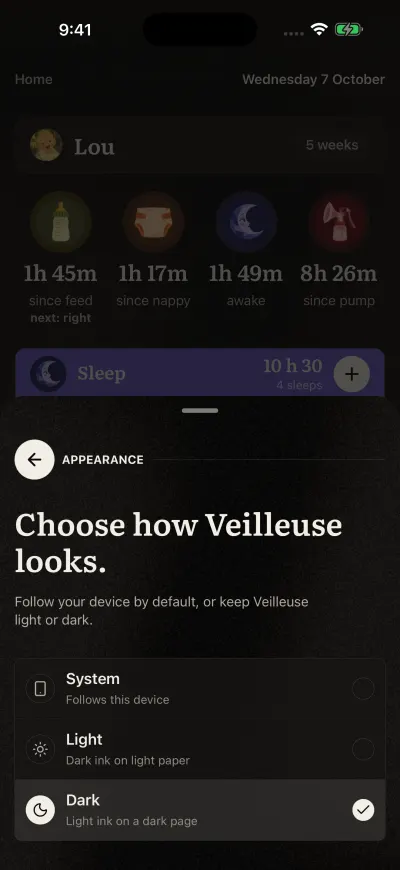
Tap a choice. The colours change at once.
Help and support
Tap Help and support to open this support site, in the language of the app. You find the guides there, and a way to write to us.
Account
Scroll to the bottom.
- Units: tap it, then tap Metric (ml, kg and cm) or Imperial (oz, lb and in). The panel closes and amounts show in the new units. If you see Could not save your units. Please try again., check your connection and tap your choice again.
- Sign Out: Veilleuse asks Are you sure you want to sign out? Tap Sign Out again to confirm. Your diary stays saved. Your sign-in on this phone is closed on our side too, and this phone stops getting the reminders. Sign in the same way to find everything again. Sign out while you are online, so your last entries are sent first.
- Delete Account, in red: deletes your account for good. Read Delete your account first.
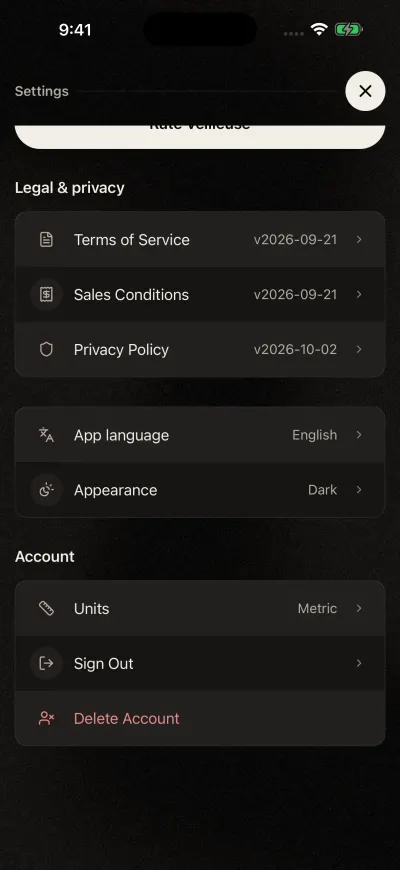
At the bottom: language, appearance, units, sign out and delete.