
Everything starts from two places: the bar on the left of the screen and the bar at the bottom.
Short answer
The bar on the left holds Home, Create, Library and Settings. The bar at the bottom shows your mix and opens the mixer. The round button at the bottom right opens search.
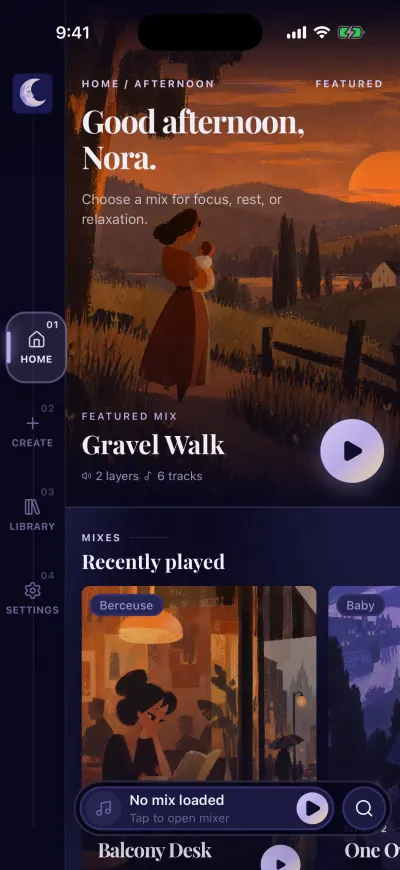
Home. The bar on the left takes you everywhere.
The bar on the left
It has four buttons, numbered 01 to 04 from top to bottom. The one you are on is lit and sits a little to the right.
- Home (01): mixes and playlists to listen to now.
- Create (02): build a new mix, step by step, like your first one.
- Library (03): what you created, liked and downloaded.
- Settings (04): your name, your subscription, the app language and signing out.
Without a subscription, button 03 shows a crown and Premium. It opens the subscription screen. Once you subscribe, it shows Library again.
When a new version of the app is ready, a small round badge with 1 appears on Settings. Open Settings and tap Update.
The bar at the bottom
It stays at the bottom of every screen you open from the bar on the left.
- On the left: the cover and the name of the mix that is loaded. Tap there to open the mixer.
- The round play button starts or pauses the sound, without leaving the screen you are on.
- With no mix yet, it says No mix loaded and Tap to open mixer.
- When you open the app again, it can say Tap to resume. Tap it to play your last mix again.
Search
The round button with a magnifying glass, at the bottom right next to the play bar, opens search. You find sounds, playlists and mixes there.
Panels from the bottom
Search, the mixer, the page of a mix and a few others open as panels that slide up from the bottom. To close one, pull it down by the small bar at its top.