
Home, the week and the baby screen show one baby at a time. You choose which.
Short answer
Tap Baby at the bottom right, then Switch baby next to your baby’s name. Tap the other baby in the list. Home, the week and the baby screen now show that baby.
Veilleuse is for iPhone.
Switch the baby shown
- Tap Baby at the bottom right of the screen. Your baby’s page opens. From Home, you can also tap the baby card at the top.
- Tap Switch baby, next to your baby’s name, or tap the name itself.
- A page slides up: Choose a baby.
- Tap the baby you want. The page closes.
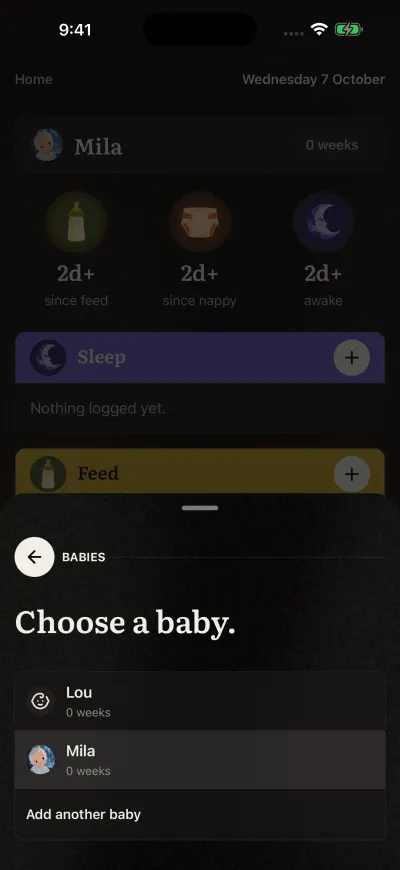
Tap the baby you want.
Home, the week and the baby screen now show that baby. Veilleuse remembers your choice next time you open it.
Switch baby only shows when the family has two babies or more.
Each phone chooses
Your choice is for your iPhone. Your partner may see the other baby on their phone. They switch the same way, on their own phone. Every entry goes to the right baby, whoever logged it.
Log one moment for several babies
With two babies or more, saving a new feed, sleep, nappy, bath, tooth brushing, growth or medication opens a short page, such as Who had the bottle?
- The baby shown is already ticked.
- Tap another baby to tick them too, or tap the last row to tick them all.
- Tap the button at the bottom. It names the babies ticked.
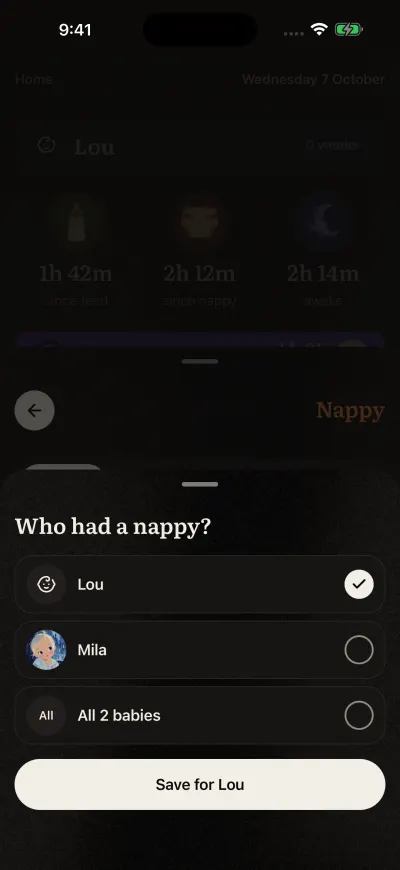
Tick the babies, then tap the button.
Each baby gets their own entry. Pumping never asks: it stays with the baby shown. If no baby is ticked, the button says Tick at least one baby