
Every carer in the family can change these details. The change shows on every phone.
Short answer
Tap Baby, then Edit on the right of the name. Change what you need, then tap Save.
Veilleuse is for iPhone.
Change the name, birth date or sex
- Tap Baby at the bottom right of the screen.
- Tap Edit, on the right of your baby’s name. A page slides up: Edit baby
- Change the name, or tap the date under Born and slide the wheel, then tap Done.
- Tap Save at the bottom.
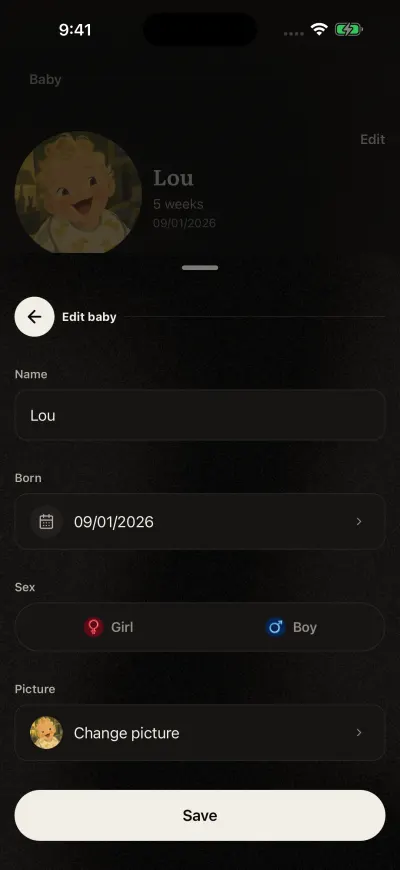
Change what you need, then Save.
The age on Home and on the baby screen follows the birth date. If the age looks wrong, check the birth date here.
To change another baby, switch to that baby first with Switch baby on the baby screen.
Change the picture
- On the baby screen, tap your baby’s round picture.
- A page opens: Choose a picture
- Tap All, Girls or Boys at the top to sort the faces.
- Tap a face, then tap Use this picture at the bottom.
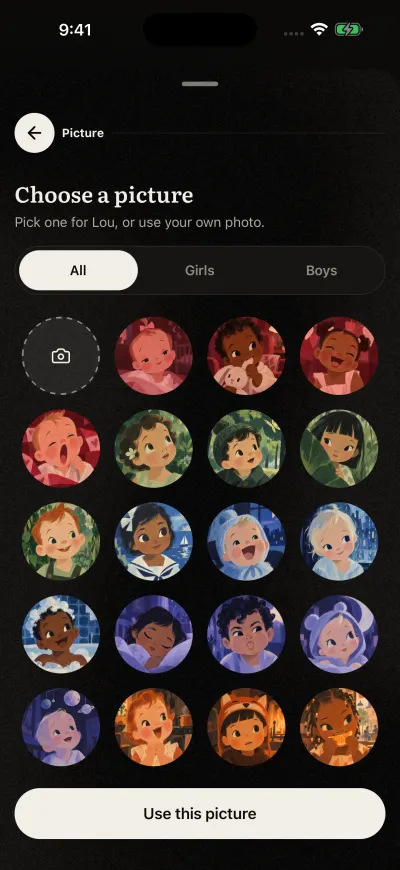
Tap a face or the camera, then Use this picture.
To use your own photo, tap the first tile of the grid. Your photo library opens. Pick a photo, move it into the square, then tap Choose.
If you see We could not update the picture. Please try again., check your connection and try again. The old picture stays until the new one is saved.
If a save of the details does not work, a box says We could not save your baby. Please try again. What you typed is still there: tap Save again.