
Everyone in the family sees the same babies and the same diary. The owner pays, and is the only one who can remove someone.
Short answer
Tap the round Baby button at the bottom right and scroll down to Family. To remove someone, the owner taps Remove next to their name.
Veilleuse is for iPhone.
Where to see your family
- Tap the round Baby button at the bottom right of the screen. It shows a small baby.
- Scroll down to Family.
Each person has a line with their name and their role: Owner or Carer. Your own line has a person with a tick. Someone who has not given a name shows as Family member.
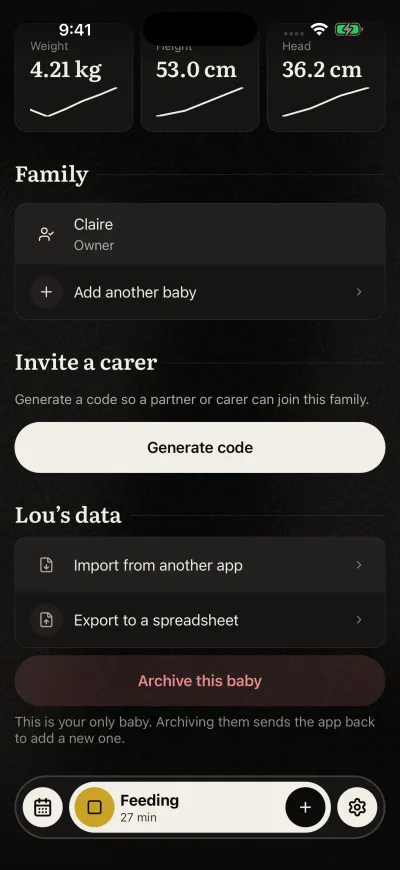
Everyone in the family, with their role.
The owner and the carers
The owner is the person who started the family, by adding the first baby. The carers joined later with a code.
| Owner | Carer | |
|---|---|---|
| Sees and adds feeds, sleep and nappies for every baby | Yes | Yes |
| Makes an invite code | Yes | Yes |
| Removes someone | Yes | No |
| Pays the Family plan | Yes | No |
One subscription covers 3 babies and 3 carers. The owner counts as one of the 3 carers.
What everyone sees
Everyone sees the same babies, the same day and the same week, with what each person logged. When your partner adds a feed, you see it too.
Each person keeps their own account and their own settings, such as units.
Remove someone
Only the owner can do this.
- On the baby’s page, scroll down to Family.
- Tap Remove, in red on the right of the person’s name.
- Veilleuse asks Remove this member? Tap Remove.
The person leaves the list and loses access to the family and its babies. What they logged stays in the diary.
On their phone, Veilleuse goes back to the screen about the baby. From there, they can start their own diary, or join another family with a code.
If you see We could not remove this member. Please try again., check that your phone has internet, then try again.
Leave a family
If you are a carer, ask the owner to remove you. There is one Leave button, on the note a carer sees when the owner’s Family plan has ended: Leave this family. See What is free, and what the Family plan adds.
The owner can’t leave their own family, and can’t remove themselves.